Me-Page Team
Last modified 30 Oct 2025
Creating a new page from scratch every time can take effort — but with ME-Page, you don’t have to start over. The platform includes a quick duplicate website page feature that lets you make an exact copy of any existing page. This is perfect for reusing layouts, maintaining consistent design, or testing new content versions without touching the original.
In this website duplication tutorial, you’ll learn step by step how to copy page design and reuse templates in ME-Page to speed up your workflow.
Why Duplicate a Page in ME-Page
Duplicating pages can save you valuable time, especially if you’re managing multiple projects or similar content types. Here’s why this feature is so useful:
- Save time: No need to rebuild layouts from scratch.
- Keep design consistency: Maintain a unified look across all your pages.
- Test variations: Try new headlines, images, or text without changing your main page.
- Reuse templates easily: Create one perfect layout and use it as your personal template for future projects.
Step-by-Step Guide: How to Duplicate a Page
Follow these steps to duplicate and reuse pages in ME-Page.
Step 1: Open Your Dashboard
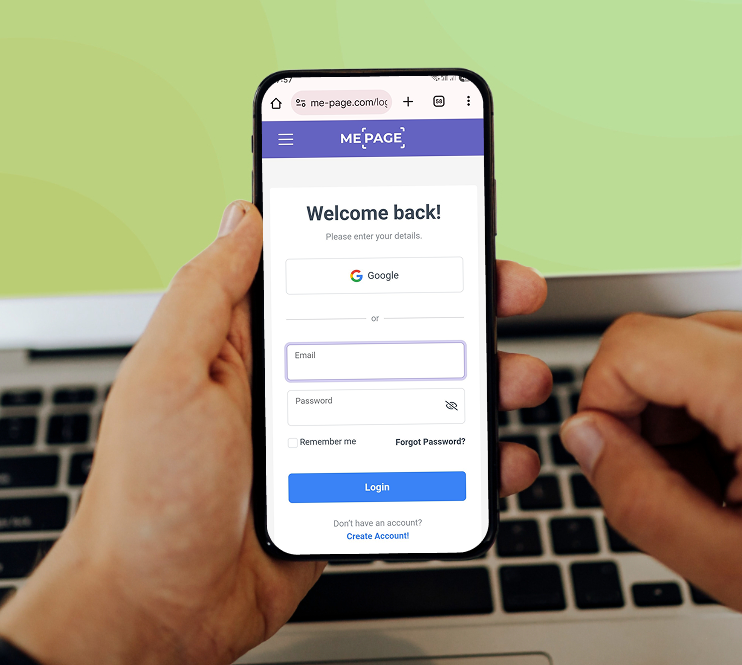
Log in to your ME-Page account and go to your main workspace.
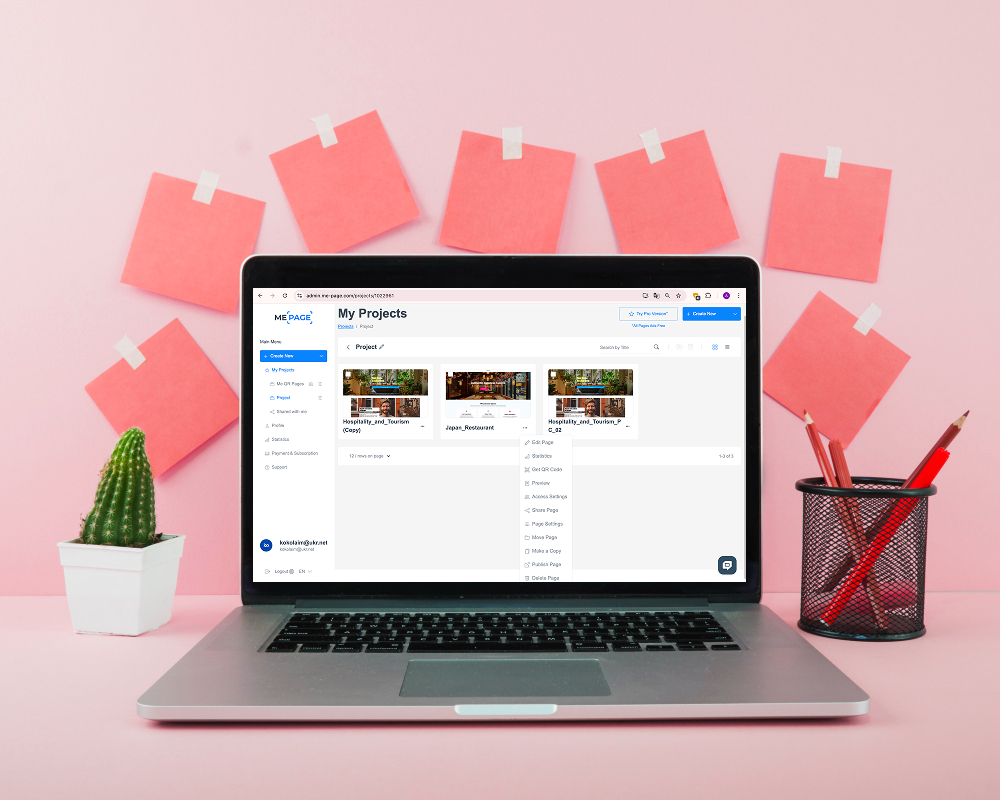
Here, you’ll see a grid of all your existing projects or pages, similar to what’s shown in the image above.
Each tile represents one of your created pages — ready to be edited, shared, or copied.
Step 2: Find the Page You Want to Duplicate
Scroll through your list of pages and locate the one you want to copy.
Hover over the thumbnail of that page — you’ll see a three-dot (⋯) menu or options icon appear in the corner.
Tap or click that icon to open a dropdown list of available actions.
Step 3: Select “Make a Copy”
From the dropdown menu, choose “Make a Copy.”
This is the key step — it instantly creates an exact duplicate of your selected page.
In the screenshot above, this option is highlighted in red.
💡 Tip: The duplicated page includes all layout elements, images, text, and settings from the original design — making it a true copy page design feature.
Step 4: Rename Your New Page
After duplication, ME-Page will automatically create a new draft titled something like “[Original Page Name] (Copy).”
You can rename it right away to match your new purpose:
- Click the page title.
- Enter the new name (e.g., “Summer Campaign” or “Updated Portfolio”).
- Save the changes — your renamed page will appear in your list.
Step 5: Edit and Customize the Copy
Now, open your duplicated page by clicking “Edit Page.”
You can change text, images, links, and design elements as usual — without affecting the original version.
This makes it ideal for:
- Testing different versions of a landing page
- Creating seasonal or campaign-based versions
- Managing similar sites for multiple clients
Each duplicate functions as an independent project, giving you full creative control.
Step 6: Publish or Store as a Template
Once you finish editing, you have two options:
- Publish the duplicated page immediately and share its unique link.
- Or keep it as a reusable template — ready to duplicate again in the future.
This flexibility allows you to build your own private library of pre-designed layouts for fast content production.

Pro Tips for Using the Duplicate Feature
- Organize with folders: Group related pages (like “Client Projects” or “Campaigns”) for easier access.
- Use consistent names: Add version numbers or dates to distinguish duplicates (e.g., “Homepage_V2”).
- Combine with QR codes: After publishing, use the built-in QR generator to promote your new page quickly.
Duplicating pages is especially helpful when building multiple branded pages that share structure but differ in text or imagery.
Common Use Cases for Page Duplication
Here are a few ways creators use reuse templates in ME-Page effectively:
| Use Case | How Duplication Helps |
| Marketing Campaigns | Keep the same layout while updating offers or visuals. |
| Client Work | Create one base design, duplicate for each client. |
| Event Pages | Use one design for different events (change date, venue, and photos). |
| Product Pages | Maintain brand consistency while editing only product details. |

Conclusion
Duplicating and reusing pages in ME-Page is one of the simplest yet most powerful tools for saving time and staying consistent.
With just one tap on “Make a Copy”, you can instantly duplicate a website page, reuse templates, and copy page design for any purpose — whether it’s a new campaign, client site, or updated version of your main page.
The best part? Every duplicated page is fully editable, mobile-friendly, and ready to publish in seconds.
Try it today — streamline your workflow and make the most of ME-Page’s website duplication tools.Was This Article Helpful?
Click on a star to rate it!
Average Rating: 5/5
Voutes: 1
Share with Friends:


Previous
Create and Edit Your ME-Page Website Anytime with Mobile Tools

Next
Using a Custom Domain: Connect Your Website to Your Brand
Recent Articles
Everything You Need to Know About Using ME-Page Constructor for Your Website.

How to Create an Effective Services Page for Your Business
When potential customers visit your business website, they want to understand what you offer, how you can help...
How to Create a Navigation Menu for a Multi-Page Website
A website can have excellent content, attractive visuals, and useful features, but visitors may still leave if...
One Website, Multiple Pages: When to Expand Your Site
Starting a website with a single page makes sense. You can introduce your business, showcase your work, add a ...
Create a Personal Link Hub with Pages for Every Project
Do you have a portfolio, a personal blog, freelance services, and a few side projects scattered across differe...

How to Optimize Page URLs for Better SEO
A website URL might look like a small technical detail, but it can influence how people understand your conten...
How to Design a Website Footer That Improves User Experience
A website footer might be the last thing visitors see, but that doesn't make it unimportant. When people reach...
How to Create an Effective Services Page for Your Business
When potential customers visit your business website, they want to understand what you offer, how you can help...
How to Create a Navigation Menu for a Multi-Page Website
A website can have excellent content, attractive visuals, and useful features, but visitors may still leave if...
One Website, Multiple Pages: When to Expand Your Site
Starting a website with a single page makes sense. You can introduce your business, showcase your work, add a ...
Create a Personal Link Hub with Pages for Every Project
Do you have a portfolio, a personal blog, freelance services, and a few side projects scattered across differe...
How to Optimize Page URLs for Better SEO
A website URL might look like a small technical detail, but it can influence how people understand your conten...
How to Design a Website Footer That Improves User Experience
A website footer might be the last thing visitors see, but that doesn't make it unimportant. When people reach...