Me-Page Team
Last modified 3 Dec 2025
ME-Page offers an easy and intuitive drag-and-drop editor that helps beginners build a fully functional website in minutes without design skills or coding. One of the most powerful features is the Ready-Made Blocks library, which includes dozens of pre-designed sections such as headers, galleries, testimonials, pricing, footers, forms, and more.
Below is a step-by-step website setup to help you understand and use every category of Ready-Made Blocks shown in your screenshot.
Accessing Ready-Made Blocks
To open the block library:
- Click + Create Block in the ME-Page editor.
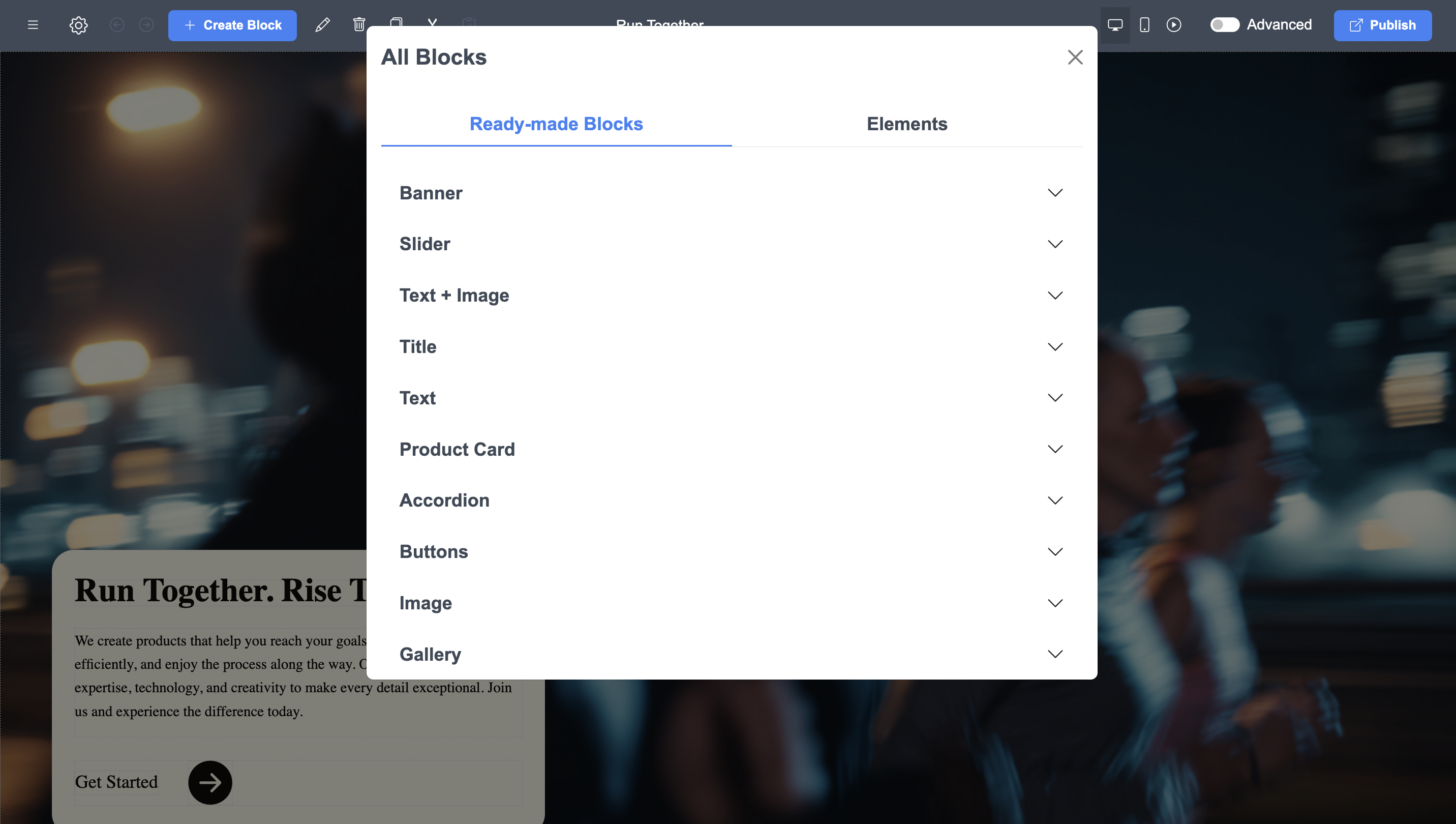
- A large modal window appears with two tabs:
- Ready-Made Blocks
- Elements
Overview of Ready-Made Block Categories You Have
Categories of Ready-Made Blocks
Your screenshot shows the full set of block categories available in ME-Page. Here’s what each one contains and how it’s typically used:
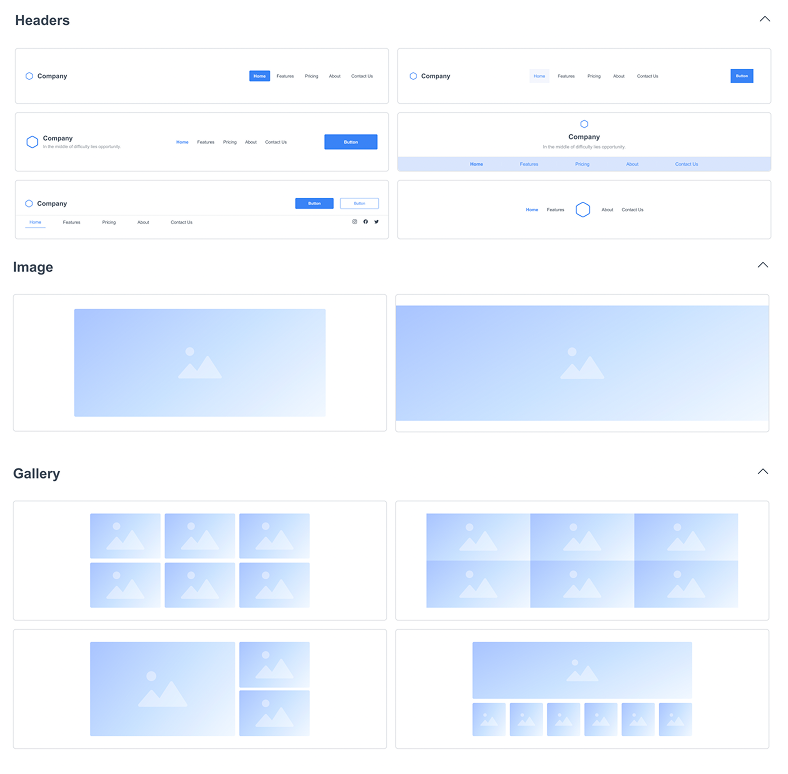
Headers
These blocks sit at the top of your page.
They include:
- Logo + menu layout options
- Hero sections with large images and headlines
- Header styles with centered, left, or right-aligned buttons and text
Use them to introduce your website and set the tone.
Gallery Blocks
Perfect for showcasing images or portfolio items.
Styles include:
- One large image + caption
- Two-column galleries
- Grid formats with several thumbnails
Useful for photographers, shops, restaurants, and service providers.
Text + Image Sections
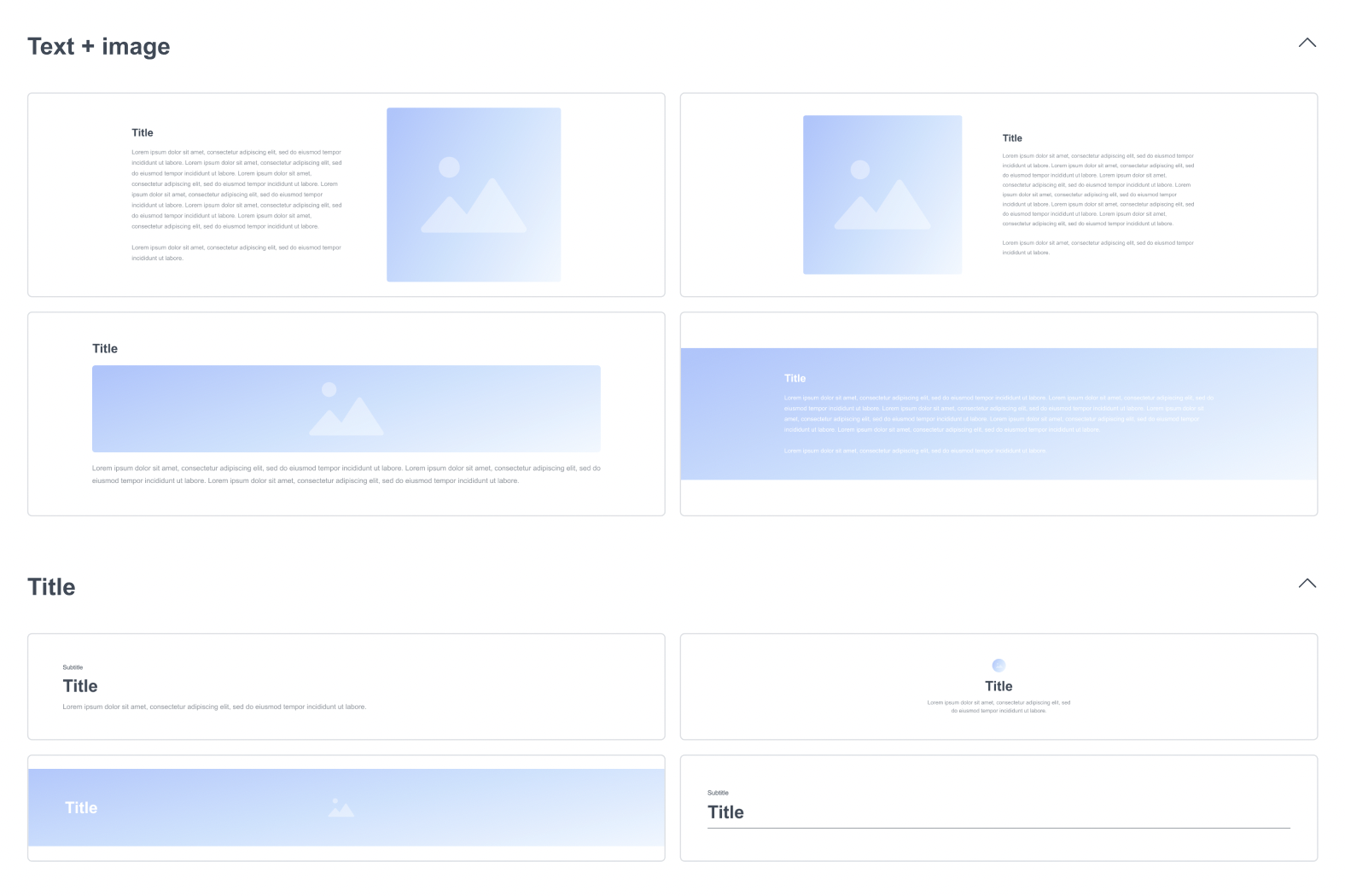
This is one of the most flexible block types.
Options include:
- Image left + text right
- Text left + image right
- Two-column text sections
- Wide text sections with buttons
Ideal for describing services, features, or your company story.
Titles Blocks
These include:
- Section titles
- Small info blocks
- Highlighted text sections
Use these to separate content and guide visitors visually.
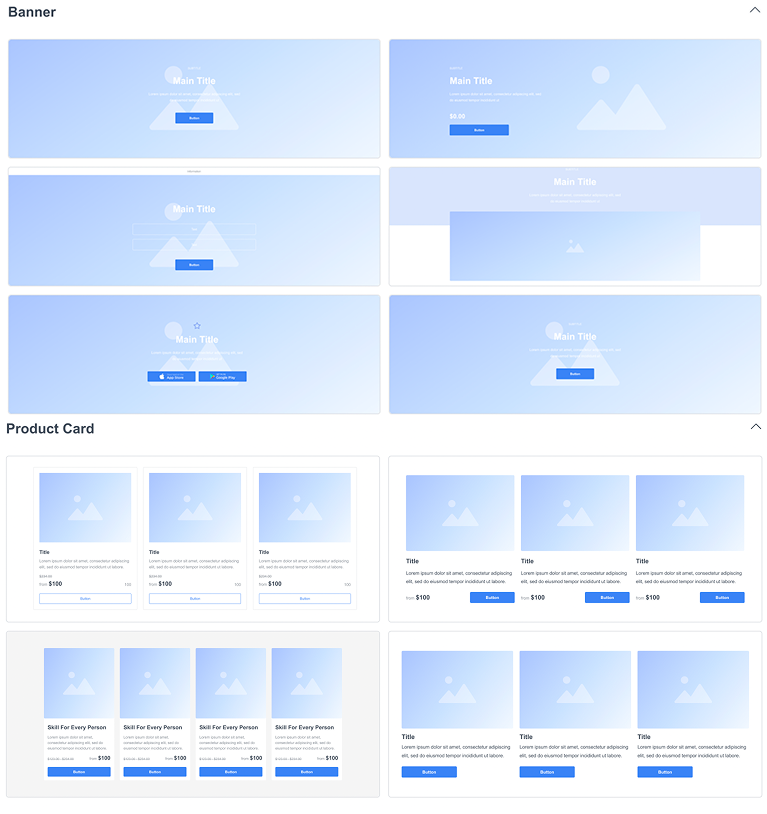
Banner Blocks
These are higher-impact call-to-action sections such as:
- Full-width banners
- Motivational statements
- Highlight blocks with centered buttons
Perfect for “Book Now,” “Contact Me,” or “Buy Now” moments.
Content Cards
Great for structured information.
Includes:
- Services cards
- Features cards
- Multi-card grids (3–6 cards)
Popular for listing services, advantages, or product categories.
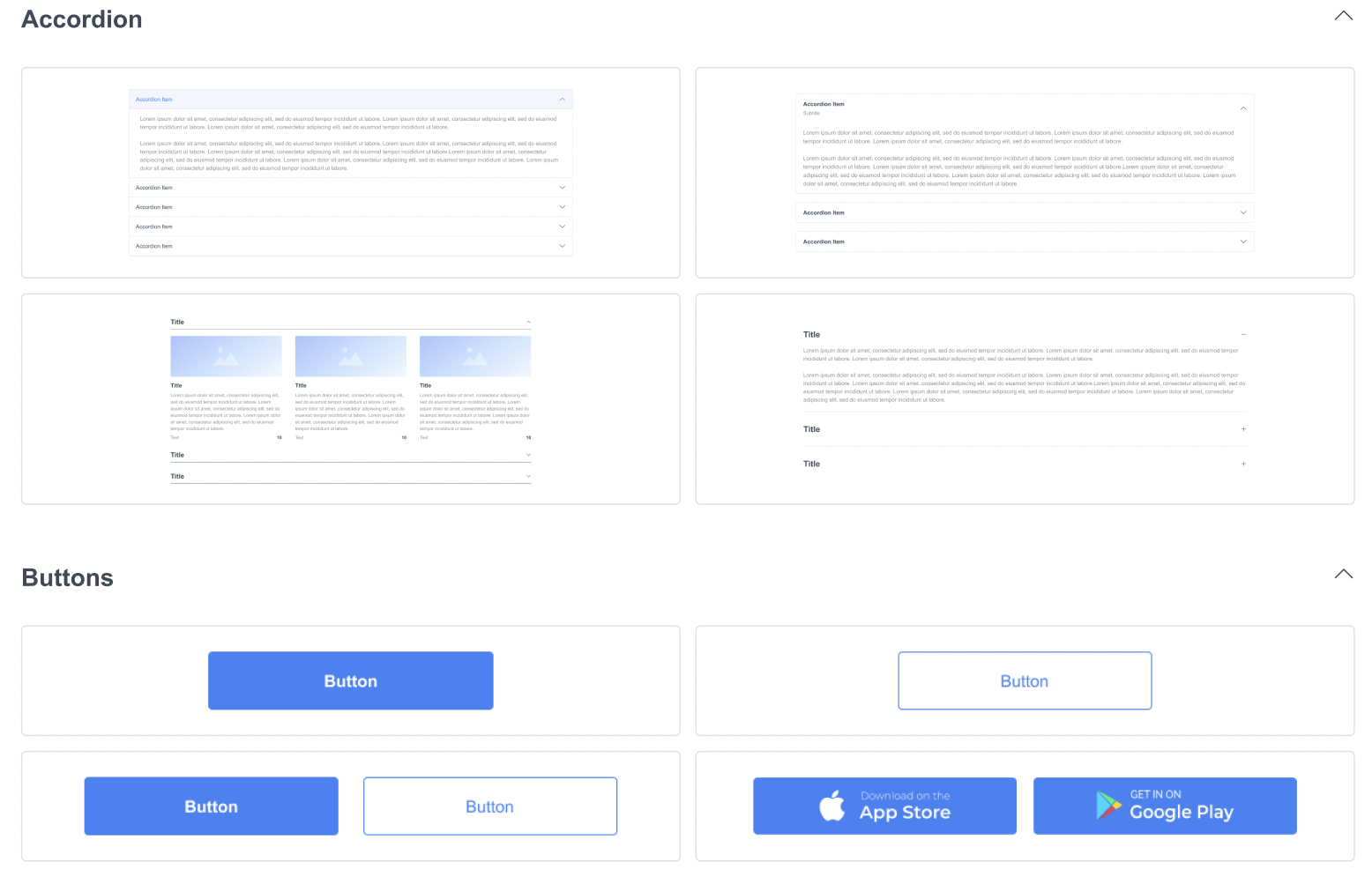
Accordions
Expandable text areas for:
- FAQs
- Policy sections
- Multi-step instructions
They keep long content clean and easy to browse.
Buttons Blocks
These blocks contain ready-designed button layouts:
- One centered button
- Two buttons side by side
- Multi-button groups
Useful for any call-to-action area.
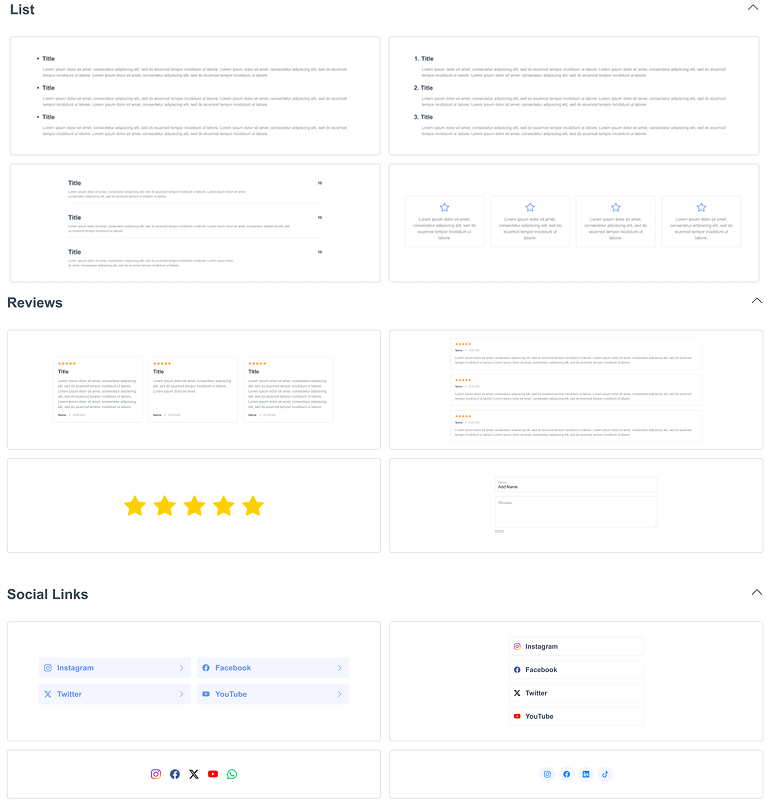
Lists & Features
These blocks include:
- Bullet lists
- Icon + text features
- Multi-column feature blocks
Common for listing product benefits or service features.
Review Blocks
Includes customer testimonial styles:
- Star rating + text
- Multi-review grid layouts
- Single testimonial sections
Excellent for building trust.
Social Media Blocks
Ready-made sections with:
- Icons for social platforms
- Follow buttons
- Share links
Useful for boosting your online presence.
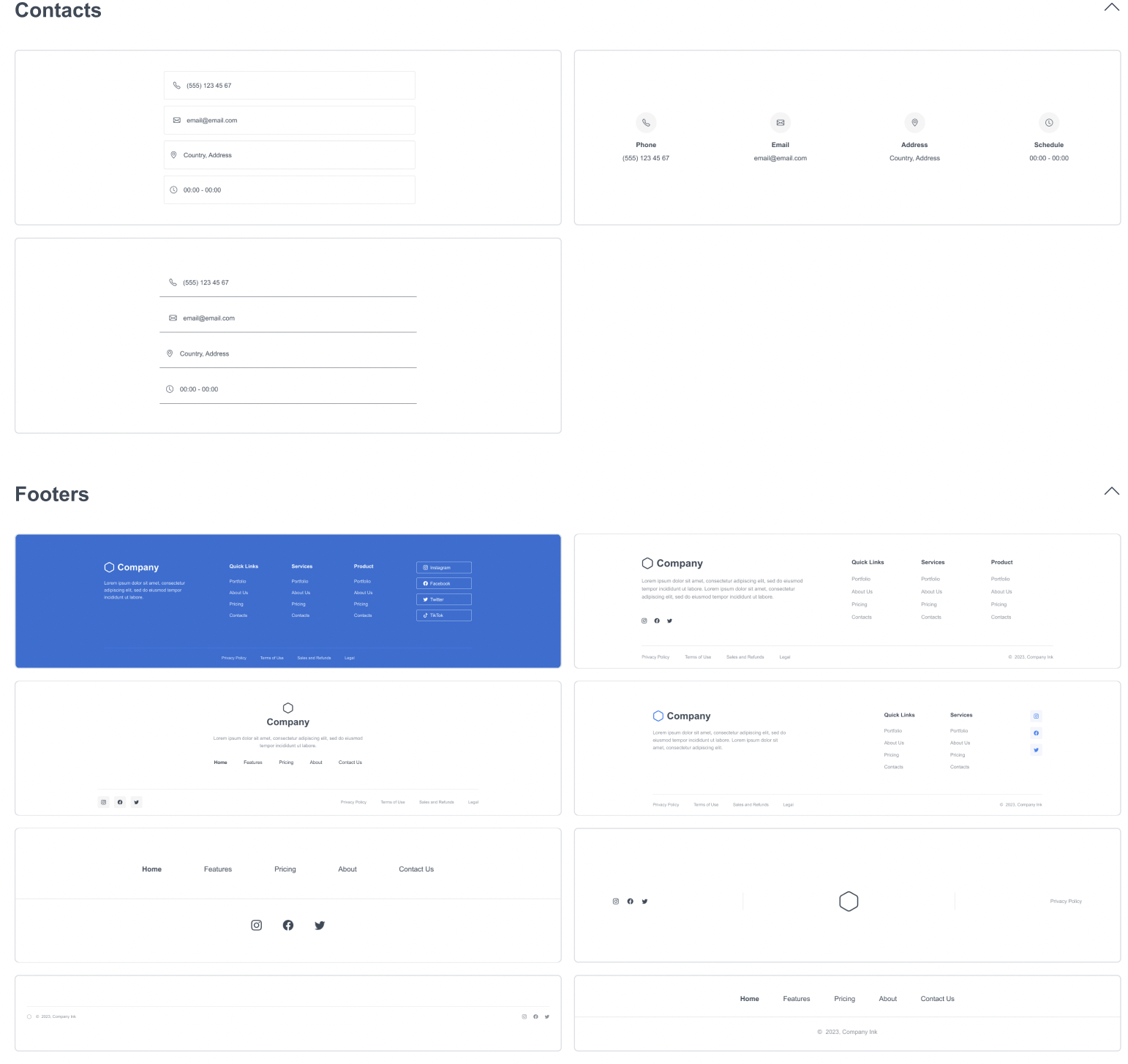
Contact Blocks
These provide:
- Contact forms
- Maps
- Contact information layouts
Perfect for lead generation and inquiries.
Footers
A full library of footer designs:
- Minimal footers
- Multi-column footers
- Footers with menus, languages, and social links
Every site needs one, they complete the structure.
How to Add a Block
- Open Ready-Made Blocks
- Select a category
- Click the block you want
- It instantly appears on your ME-Page
- Edit text, replace images, or customize layout as needed
Just click any element inside the block to change fonts, colors, spacing, backgrounds, and more.
How to Reorder or Remove Blocks
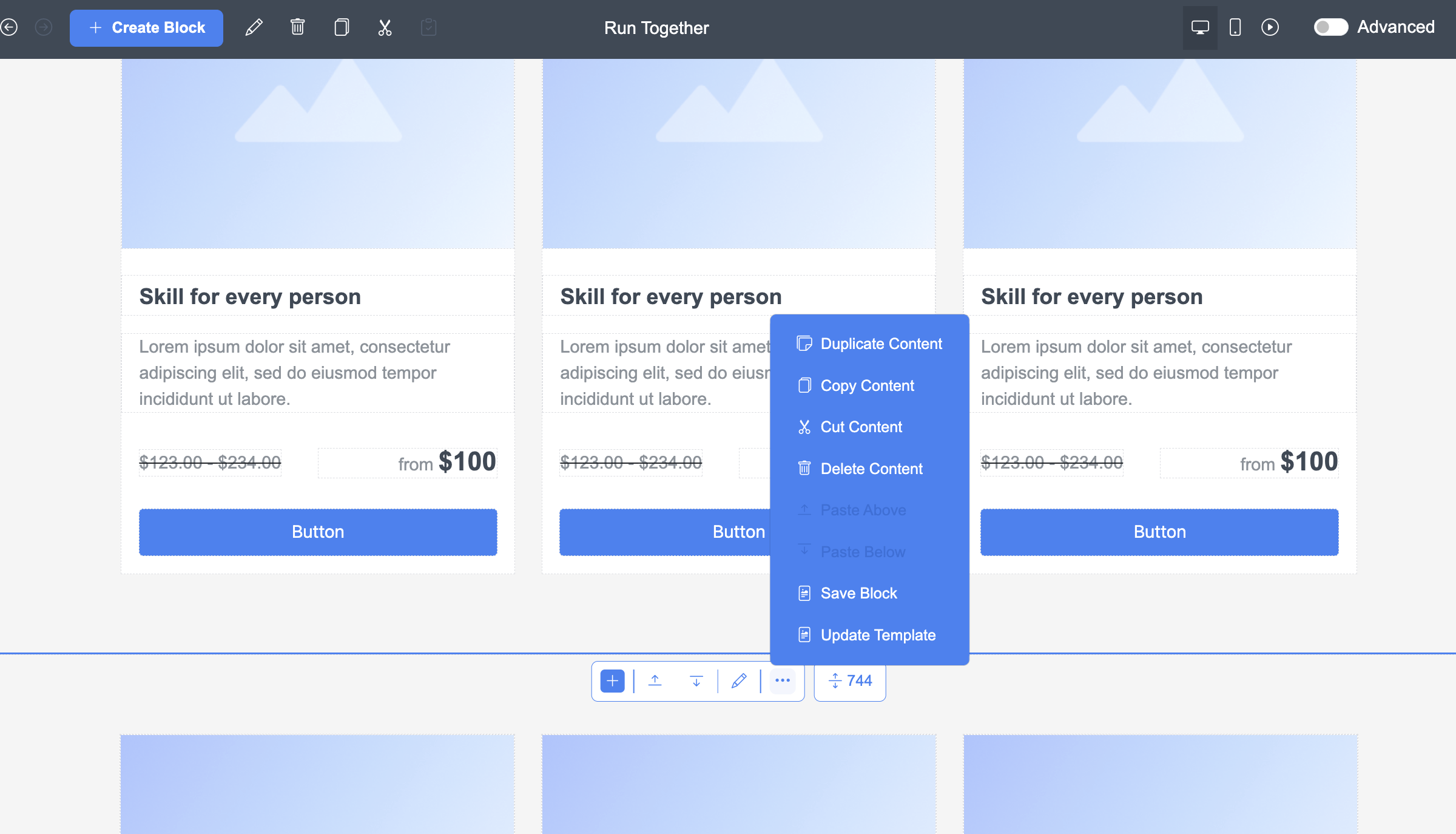
- Drag a block up or down using the block toolbar
- Delete a block using the trash-can icon
- Duplicate a block if you want the same structure again
This makes your page layout fully flexible.
Tips for Choosing the Right Blocks
Here’s how to structure a beginner-friendly ME-Page:
Essential Blocks to Start
- Header
- Hero (text + image)
- Services / Features
- Testimonials
- Contact
- Footer
Blocks to Make the Page More Attractive
- Gallery
- Banner with CTA
- Stats
- Social links
Blocks for Professional Pages
- Accordions for FAQs
- Multi-card grids
- Reviews
- Lists for feature breakdowns

Conclusion
Getting started with ME-Page becomes dramatically easier once you understand how to use Ready-Made Blocks. These pre-designed sections allow you to build a complete, professional website in minutes without struggling with layout, code, or design. Whether you need a bold header, engaging gallery, detailed services section, or a polished footer, every building block is already prepared for you. Simply choose the layout that fits your style, customize the content to match your brand, and rearrange the sections until your page flows naturally.
For beginners, this system provides a fast, intuitive way to launch a beautiful website. For advanced users, the blocks offer enough flexibility to create unique and visually impressive pages. By exploring each category from headers to footers, from cards to forms you unlock the full creative potential of ME-Page website template walkthrough and gain the tools to build a website that feels both professional and personal.
Frequently Asked Questions about Ready-Made Blocks
Was This Article Helpful?
Click on a star to rate it!
Average Rating: 4.8/5
Voutes: 5
Share with Friends:


Previous
How to Change Backgrounds and Template Blocks in ME-Page

Next
How to Publish Your First ME-Page Website in One Click
Recent Articles
Everything You Need to Know About Using ME-Page Constructor for Your Website.

Essential Pages Every Business Website Should Include
A business website doesn't need dozens of pages to look professional. What it does need is a clear structure t...

How to Write Website Headlines That Attract More Visitors
A headline is often the first piece of text people notice when they open a website. Before they read your para...

How Freelancers Can Organize Services, Portfolio, and Contacts on...
Freelancers often wear many hats. One day you're working on a client project, the next you're answering inquir...
How to Choose the Right Website Structure for Your Project
Before you choose colors, fonts, images, or buttons for your website, there is one decision worth making first...
Why Every Business Website Needs an FAQ Page
When people visit a business website, they rarely arrive without questions. They may want to know how a servic...
Best Homepage Sections Every Small Business Website Should Include
Your homepage is often the first place potential customers visit when they discover your business online. In j...
Essential Pages Every Business Website Should Include
A business website doesn't need dozens of pages to look professional. What it does need is a clear structure t...
How to Write Website Headlines That Attract More Visitors
A headline is often the first piece of text people notice when they open a website. Before they read your para...
How Freelancers Can Organize Services, Portfolio, and Contacts on...
Freelancers often wear many hats. One day you're working on a client project, the next you're answering inquir...
How to Choose the Right Website Structure for Your Project
Before you choose colors, fonts, images, or buttons for your website, there is one decision worth making first...
Why Every Business Website Needs an FAQ Page
When people visit a business website, they rarely arrive without questions. They may want to know how a servic...
Best Homepage Sections Every Small Business Website Should Include
Your homepage is often the first place potential customers visit when they discover your business online. In j...