Me-Page Team
Last modified 5 Nov 2026
Article Plan
- Why Add Social Media Links to Your Website?
- Choose Which Social Media Platforms to Include
- Where to Place Social Media Icons on Your Website
- How to Add Social Media Links to Your ME-Page Website
- How to Make Social Media Icons Look Good
- Common Mistakes to Avoid When Adding Social Links
- Build a Connected Online Presence with ME-Page
- Conclusion
- Frequently Asked Questions
Your website gives visitors a place to learn about you, explore your work, and discover what you offer. But your online presence probably doesn't stop there. You may also share updates on Instagram, publish videos on YouTube, connect with customers on Facebook, or post professional content on LinkedIn.
Adding social media links to your website helps bring these channels together. Visitors can move between your website and social profiles without searching for your accounts manually. It also makes it easier for people to follow your updates and stay connected with your brand.
In this guide, we'll look at how to add social media links to a website, where to place them, and how to make them useful for visitors.

Why Add Social Media Links to Your Website?
Social media links connect different parts of your online presence. Instead of treating your website and social profiles as separate channels, you can use them together to help visitors find more information about your brand.
Here are a few reasons to include them:
- Make your profiles easier to find: Visitors can open your social accounts directly from your website.
- Build trust: Active social profiles can show that your business or personal brand regularly communicates with its audience.
- Share more content: People can discover your videos, photos, announcements, and other updates.
- Encourage engagement: Visitors who enjoy your website may decide to follow you or interact with your posts.
- Create a consistent brand experience: Your website and social profiles can support the same visual identity and message.
Social links are especially useful for freelancers, creators, small businesses, online stores, and anyone who communicates with an audience across several platforms.
Choose Which Social Media Platforms to Include
You don't need to link every social network you have ever used. Focus on the platforms where you actively publish content and communicate with your audience.
For example, a photographer might prioritize Instagram and Pinterest, while a business consultant may focus on LinkedIn and YouTube.
Consider these common options:
Choose platforms that match your audience and content strategy. A few relevant links are usually more useful than a long list of inactive profiles.
Where to Place Social Media Icons on Your Website
Once you've selected your platforms, think about where visitors should find your social links. Their placement affects how easily people notice and use them.
1. Website Header
The header is one of the most visible areas of a website. Placing social media icons there can make your profiles easy to access from the beginning.
This option works well when social media is an important part of your communication strategy. However, avoid overcrowding the header with too many icons or other elements.
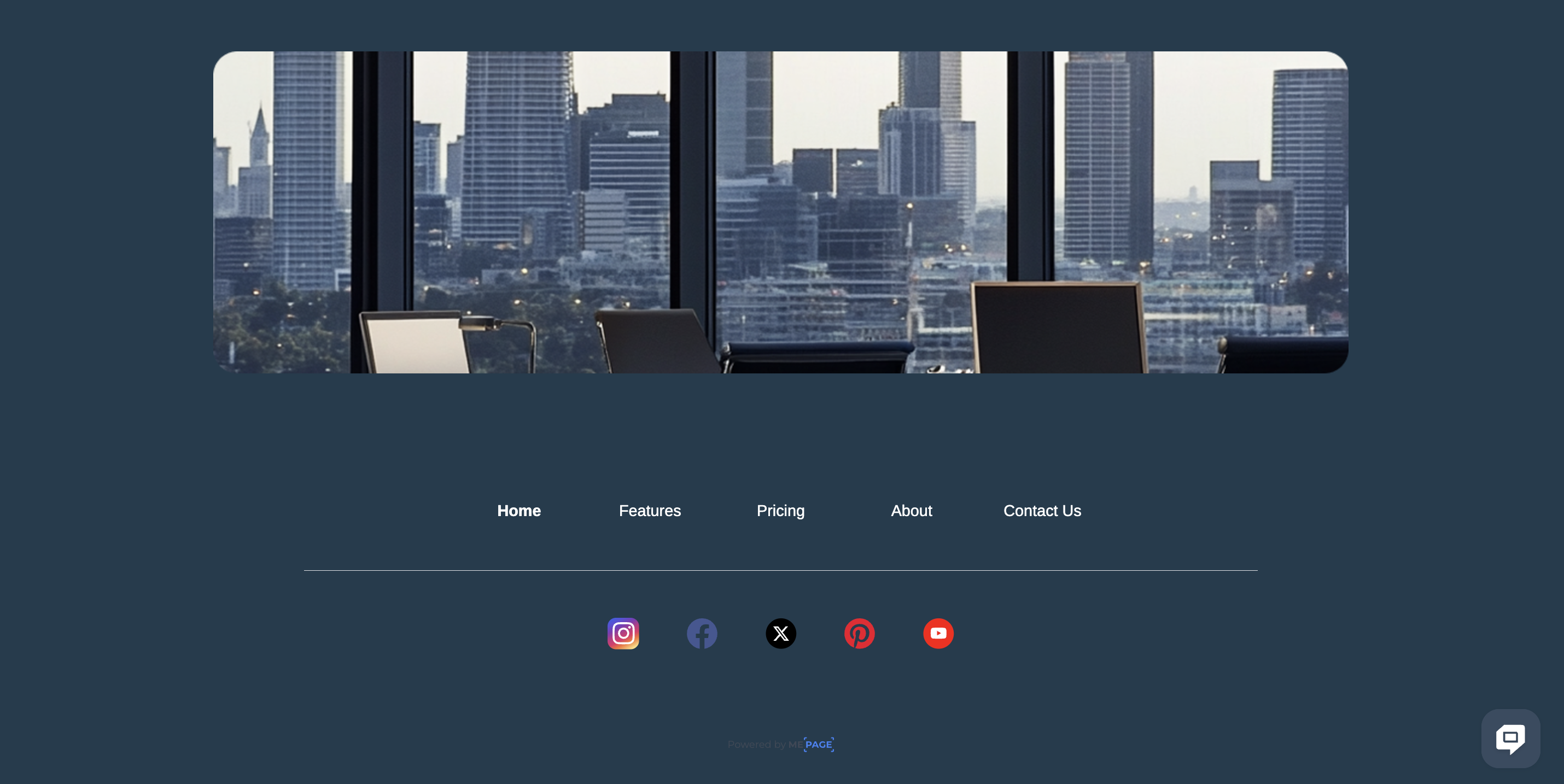
2. Website Footer
The footer is a natural place for social links because visitors often look there for additional information and ways to contact a business.
You can place social media icons alongside contact details, useful navigation links, or other secondary information. This keeps the main page content focused while making your profiles accessible.
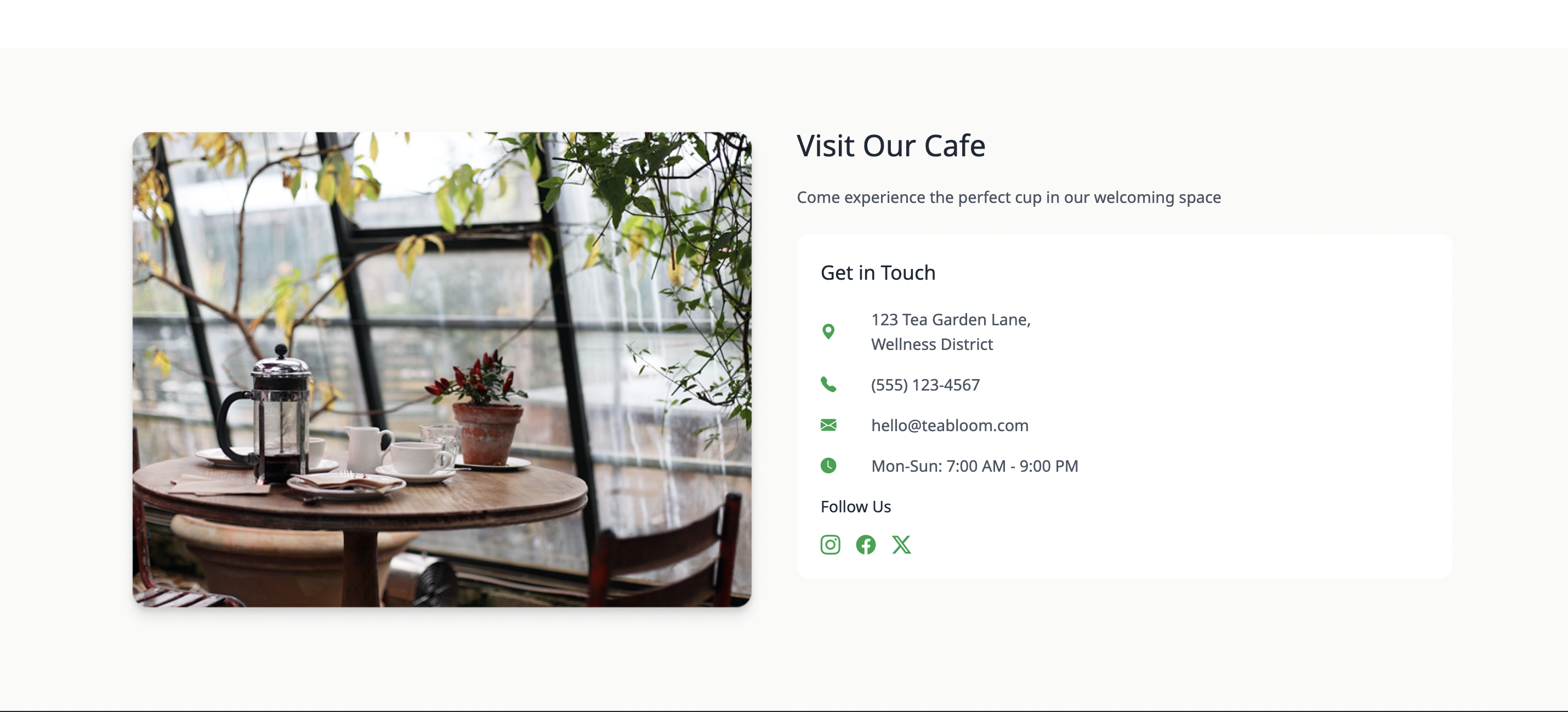
3. Contact or About Page
Your About and Contact pages are also good places for social links. Visitors who want to learn more about your business or get in touch may appreciate having several ways to connect.
For example, a freelancer could include LinkedIn and Instagram links on their About page, while a restaurant might link to Instagram and Facebook from its Contact page.
4. Dedicated Social Links Section
If you use several platforms, consider creating a small section that brings all your profiles together. This can be especially useful for creators, influencers, and professionals who want to share one central page with their audience.
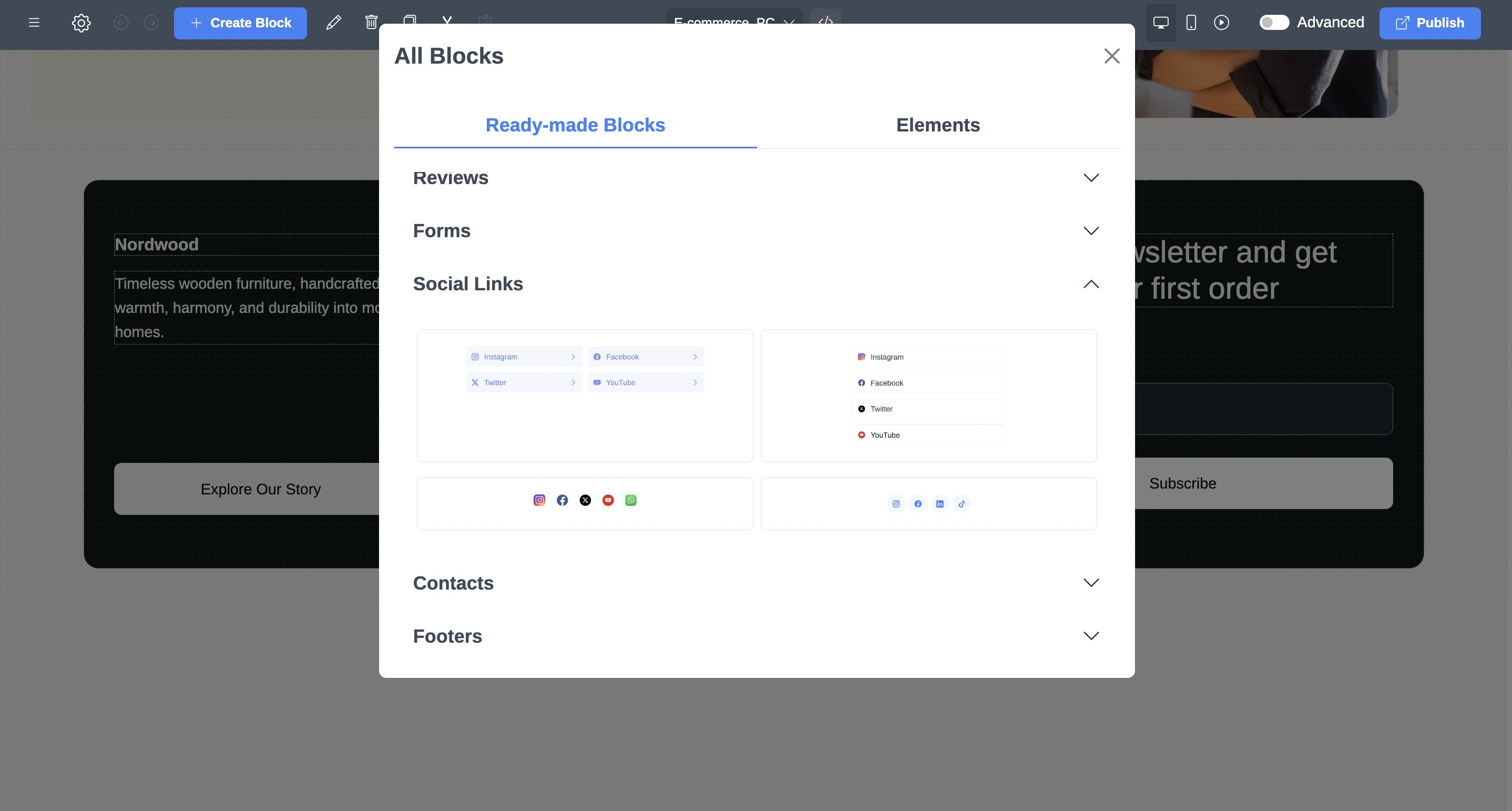
How to Add Social Media Links to Your ME-Page Website
ME-Page makes it possible to build and customize a website without writing code. You can use its editor to organize page elements and decide where visitors will find links to your social profiles.
Follow these general steps to add social links to your website:
- Open your website editor. Access the ME-Page builder and choose the page where you want to display your social profiles.
- Choose a suitable location. Decide whether the links should appear in the header, footer, contact section, or a dedicated block.
- Add the social links. Use suitable link elements or buttons and enter the URLs of your social media profiles.
- Customize their appearance. Adjust the text, layout, and visual style so the links fit naturally into your website design.
- Check the links. Preview your website and open each link to make sure it leads to the correct profile.
- Publish your changes. Once everything looks right, update your website so visitors can access the new links.
The exact layout depends on your website design and the elements available in your editor. The main goal is to make each social profile easy to recognize and open.

How to Make Social Media Icons Look Good
Social media icons can make links more recognizable and save space compared with long text URLs. Still, they should fit the overall design of your website.
Keep these tips in mind:
- Use recognizable icons: Choose familiar symbols so visitors can identify each platform quickly.
- Keep icon sizes consistent: Icons should have similar dimensions and visual weight.
- Maintain enough spacing: Avoid placing icons too close together, especially on mobile screens.
- Check color contrast: Make sure icons are visible against the background.
- Use a consistent style: Don't mix unrelated icon designs or styles on the same page.
- Make them easy to tap: Leave enough space around each icon for comfortable interaction on smartphones.
You can also add short labels when an icon alone might be unclear. This is particularly helpful if your audience includes people who may not recognize every platform's symbol.
Common Mistakes to Avoid When Adding Social Links
Even a small set of social icons can make a website look cluttered if you don't organize them carefully.
Watch out for these common mistakes:
- Adding too many platforms: A long list can distract visitors and make the page feel crowded.
- Linking to inactive accounts: Empty or outdated profiles may create a poor impression.
- Using incorrect URLs: Always check that each link opens your official account.
- Ignoring mobile layouts: Icons that look good on desktop may be difficult to tap on smaller screens.
- Hiding links in unexpected places: Keep social links somewhere visitors can find them naturally.
- Forgetting to update profiles: If your username or profile address changes, update the corresponding website link.
A quick review every few months can help keep your social links accurate and relevant.

Build a Connected Online Presence with ME-Page
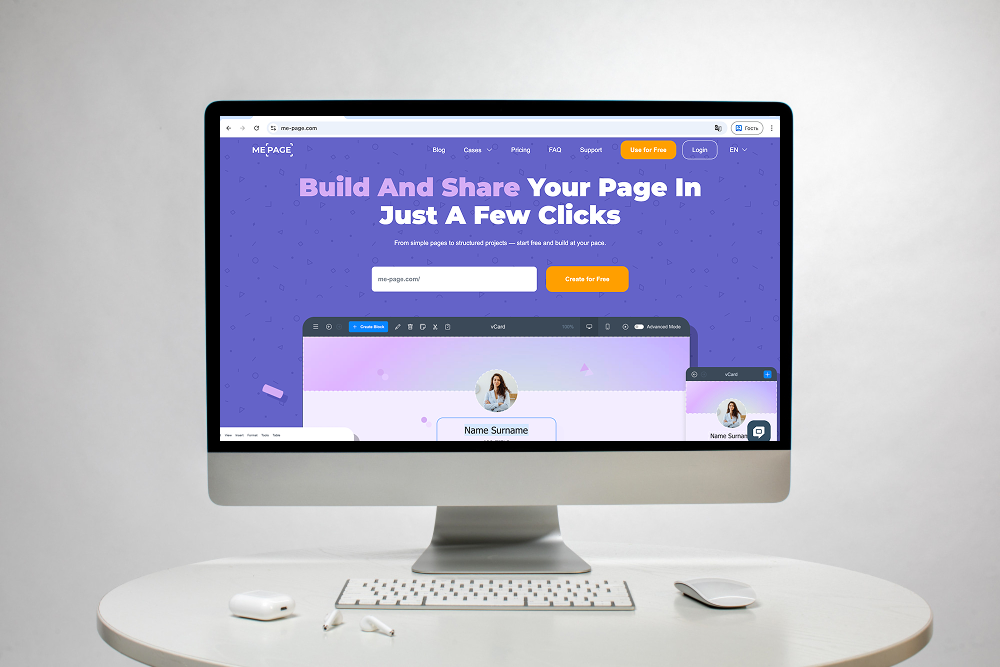
Your website can serve as the central point of your online presence, while social media platforms help you communicate with your audience in different ways. ME-Page gives you a no-code environment to organize your content, customize page elements, and add links that guide visitors to other destinations.
You can use custom action buttons to make important links more noticeable and arrange your pages with the drag-and-drop builder. If your website grows, the Multi Page Builder can help you organize information across separate pages and subpages.
Whether you're building a personal website, an online portfolio, or a business page, adding relevant social links helps visitors stay connected beyond their first visit.
Conclusion
Adding social media links to your ME-Page website is a simple way to connect your website with the rest of your online presence. Choose the platforms that matter to your audience, place their links where visitors can find them, and use recognizable icons that match your design.
Most importantly, keep your links updated and make sure every profile provides something useful. A well-organized set of social links can help visitors discover more of your content and build a stronger connection with your brand.
Frequently Asked Questions
Opening external social profiles in a new tab can help visitors keep your website available while exploring another platform. This is often convenient when someone wants to check your profile and then return to your page.
Was This Article Helpful?
Click on a star to rate it!
Average Rating: 5/5
Voutes: 1
Share with Friends:


Previous
How to Write SEO-Friendly Page Titles and Meta Descriptions

Next
Welcome to ME-Page: Your Ultimate Website Constructor
Recent Articles
Everything You Need to Know About Using ME-Page Constructor for Your Website.

How to Add Social Media Links to Your ME-Page Website
Your website gives visitors a place to learn about you, explore your work, and discover what you offer. But yo...
How to Write SEO-Friendly Page Titles and Meta Descriptions
When people search for something on Google, they usually see a list of results with a clickable title and a sh...
How to Create an Effective Services Page for Your Business
When potential customers visit your business website, they want to understand what you offer, how you can help...
How to Create a Navigation Menu for a Multi-Page Website
A website can have excellent content, attractive visuals, and useful features, but visitors may still leave if...
One Website, Multiple Pages: When to Expand Your Site
Starting a website with a single page makes sense. You can introduce your business, showcase your work, add a ...
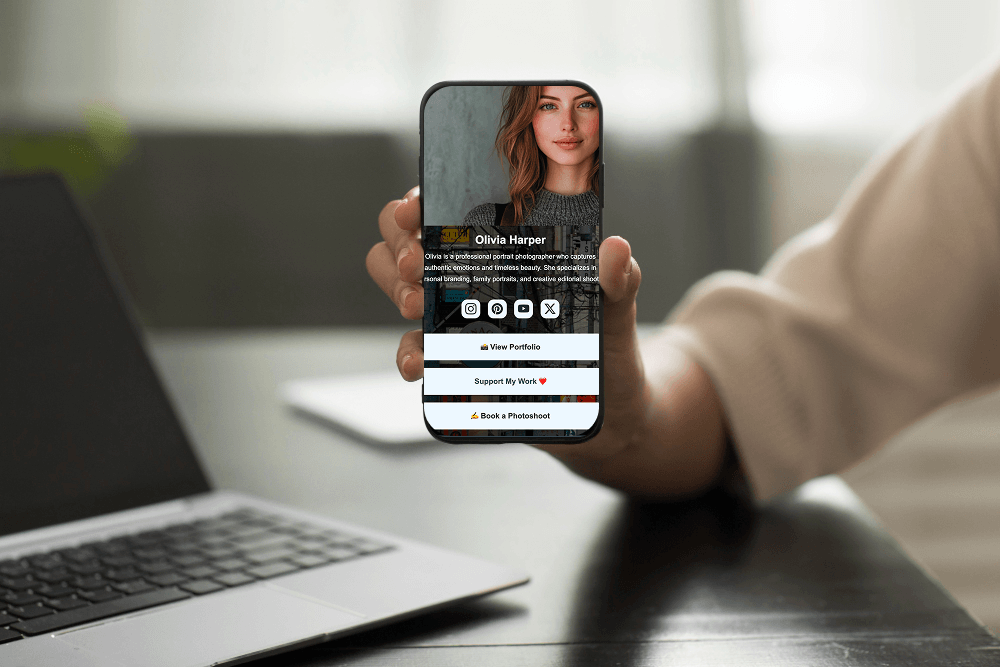
Create a Personal Link Hub with Pages for Every Project
Do you have a portfolio, a personal blog, freelance services, and a few side projects scattered across differe...
How to Add Social Media Links to Your ME-Page Website
Your website gives visitors a place to learn about you, explore your work, and discover what you offer. But yo...
How to Write SEO-Friendly Page Titles and Meta Descriptions
When people search for something on Google, they usually see a list of results with a clickable title and a sh...
How to Create an Effective Services Page for Your Business
When potential customers visit your business website, they want to understand what you offer, how you can help...
How to Create a Navigation Menu for a Multi-Page Website
A website can have excellent content, attractive visuals, and useful features, but visitors may still leave if...
One Website, Multiple Pages: When to Expand Your Site
Starting a website with a single page makes sense. You can introduce your business, showcase your work, add a ...
Create a Personal Link Hub with Pages for Every Project
Do you have a portfolio, a personal blog, freelance services, and a few side projects scattered across differe...


