Me-Page Team
Last modified 17 Nov 2026
Article Plan
- What Is CSS and Why Does It Matter for Website Design?
- What Can You Customize with CSS on ME-Page?
- How to Customize Your ME-Page Website with CSS
- CSS Styles vs. CSS Classes: What's the Difference?
- Best Practices for CSS Website Customization
- Common CSS Customization Mistakes to Avoid
- Combine No-Code Editing and CSS with ME-Page
- Final Thoughts
- Frequently Asked Questions
A website builder makes it easy to create pages without writing code, but sometimes the standard design options aren't enough. You may want to adjust spacing, change text appearance, customize backgrounds, or make a particular element look different from the rest of your page.
That's where CSS comes in.
CSS, or Cascading Style Sheets, controls how website elements look. It gives you more flexibility over visual details and helps you refine a design beyond the basic editor settings.
With ME-Page, you can use Advanced Mode and its CSS customization options to fine-tune your website's appearance. In this guide, we'll explain what CSS does, which elements you can customize, and how to approach CSS styling without making your website difficult to manage.
What Is CSS and Why Does It Matter for Website Design?
CSS is a styling language used to control the visual presentation of web pages. While HTML defines the structure and content of a page, CSS determines how those elements appear.
For example, CSS can control:
- Font size, weight, and text color.
- Background colors and images.
- Spacing between sections and elements.
- Borders, corners, and outlines.
- Element alignment and dimensions.
- Hover effects and other visual interactions.
Even small adjustments can make a noticeable difference. Increasing the spacing between sections can improve readability, while consistent typography can make your website feel more professional.
CSS website customization is particularly useful when you already have a clear design in mind and want more control over the final result.
What Can You Customize with CSS on ME-Page?
ME-Page provides a no-code editor for building pages, along with Advanced Mode for users who want more control over their website's appearance.
Its CSS customization options allow you to work with visual details that may require more precise styling than standard editing controls.
Here are some examples of what CSS can help you refine:

1. Typography and Text Appearance
Typography affects how visitors read and understand your content. CSS can help you adjust font size, style, weight, and color to create a consistent visual hierarchy.
For example, you may want larger headings, softer colors for secondary text, or more comfortable spacing between paragraphs.
2. Backgrounds and Colors
Your website's color palette contributes to its overall identity. CSS can help you customize backgrounds and refine the appearance of individual elements.
You might use a subtle background for a testimonial section, adjust the color of a content block, or make a particular element stand out.
3. Spacing and Alignment
Poor spacing can make even a well-designed website feel cluttered. CSS gives you more control over the distance between elements and how they are positioned.
You can use it to refine the layout of text blocks, images, buttons, and other page components.
4. Borders and Element Appearance
Small details can help separate content and create a more polished design. CSS can be used to adjust borders, corner shapes, and other decorative properties.
For example, you may want softer corners on content cards or a more defined border around a specific section.

How to Customize Your ME-Page Website with CSS
If you want to go beyond the standard visual settings, ME-Page offers Advanced Mode and additional CSS customization options.
The general workflow is straightforward:
- Open your ME-Page editor. Select the website you want to customize.
- Access Advanced Mode. Switch to the advanced editing options to work with more detailed website settings.
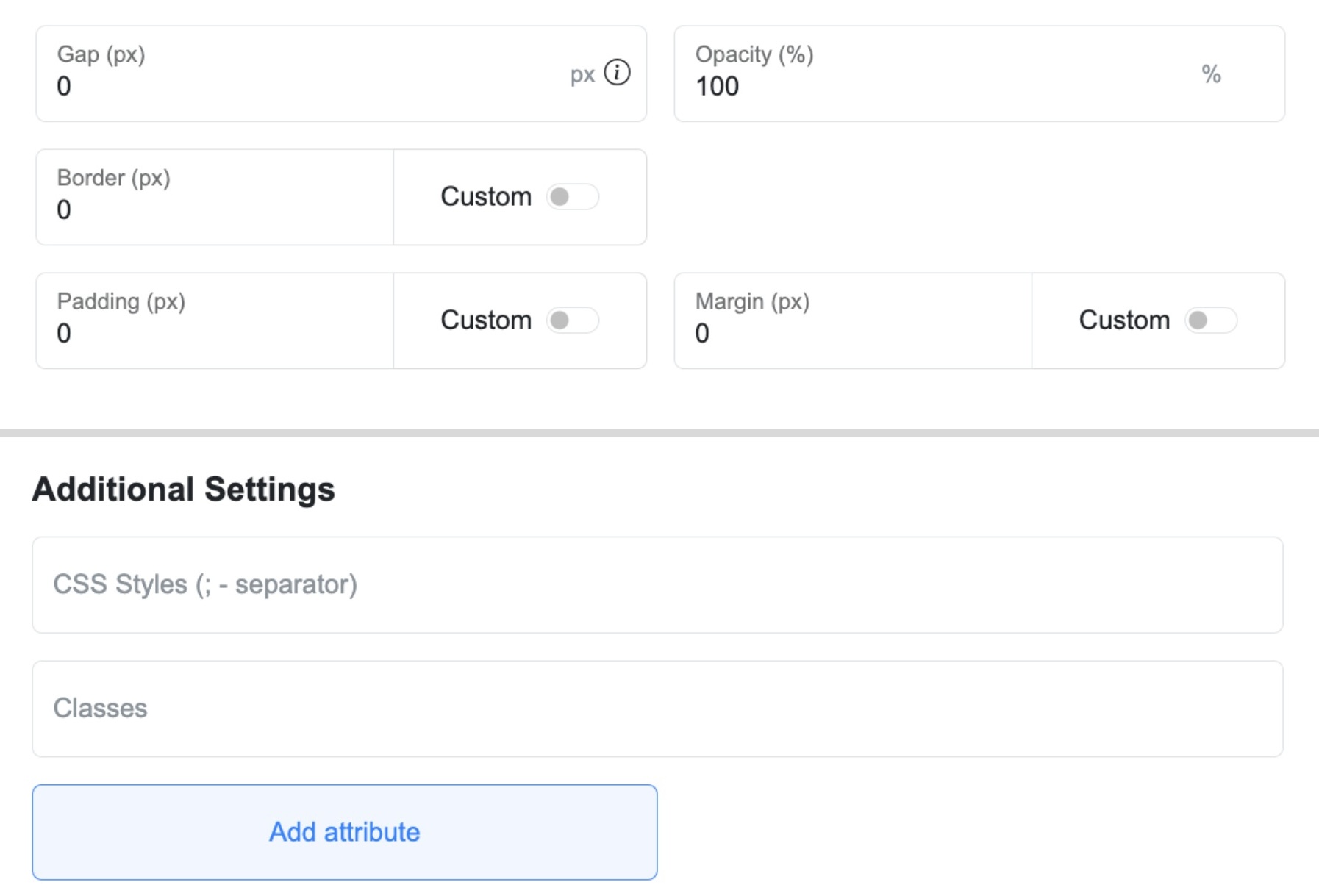
- Find the CSS customization settings. Open Additional Settings, where you can work with CSS Styles and Classes.
- Choose what to adjust. Decide whether you want to refine typography, backgrounds, spacing, borders, or another visual detail.
- Apply and review your changes. Check how the updated elements look within the page.
- Test the website on different devices. Make sure your changes don't negatively affect the layout on smaller screens.
- Publish when you're satisfied. Review the live page to confirm that the design looks as expected.
You don't need to customize every element with CSS. Start with the details that will make the biggest difference to your website's appearance.
CSS Styles vs. CSS Classes: What's the Difference?
When working with CSS, it's useful to understand the difference between styles and classes.
Think of a CSS class as a label that identifies a group of elements. You can use the same class to maintain a consistent appearance across several parts of your website.
This is particularly helpful when you want buttons, content blocks, or other repeated elements to follow the same design rules.
Best Practices for CSS Website Customization
CSS gives you more freedom, but that doesn't mean every available property needs to be changed. A few simple practices can help you avoid unnecessary design problems.
Start with Small Adjustments
Don't redesign your entire website at once. Begin with one element or section, review the result, and then move on to the next change.
This makes it easier to identify which adjustment caused an unexpected result.
Keep Your Design Consistent
Use a limited color palette, consistent typography, and similar spacing across related sections. Your homepage, service pages, and contact page should feel like parts of the same website.


Consider Mobile Screens
A layout that looks good on a desktop may not work as well on a smartphone. Check text sizes, spacing, alignment, and the overall appearance of customized elements on smaller screens.
Avoid Unnecessary Styling
Too many decorative effects can distract visitors from your content. Use CSS to improve clarity and usability rather than adding visual effects without a clear purpose.
Keep Your Changes Organized
If you work with multiple classes and styling rules, use clear names and keep related adjustments easy to identify. This makes future edits more manageable, especially as your website grows.
Common CSS Customization Mistakes to Avoid
Even small styling changes can affect other parts of a page if they're not applied carefully.
Watch out for these common mistakes:
- Changing too many elements at once: It becomes difficult to identify the source of a layout issue.
- Ignoring mobile responsiveness: Custom styling may create horizontal scrolling, overlapping content, or unreadable text.
- Using inconsistent colors and fonts: Too many visual styles can make your website feel disconnected.
- Overusing decorative effects: Excessive borders, shadows, and animations can reduce readability.
- Forgetting to review changes: Always preview your website after making CSS adjustments.
- Making changes without a clear goal: Every customization should improve the appearance, readability, or usability of the page.
A good rule is to make each change for a reason. If an adjustment doesn't improve the visitor experience, you probably don't need it.


Combine No-Code Editing and CSS with ME-Page
You don't have to choose between a simple website builder and advanced customization. ME-Page combines a drag-and-drop editor with additional options for users who want more control over their website design.
You can use the standard editor to arrange content blocks, add elements, and build your page structure. When you need more precise visual adjustments, Advanced Mode and the CSS Styles and Classes settings give you another level of customization.
This combination is useful for freelancers, small businesses, creators, and anyone who wants to build a website without relying entirely on developers.
Final Thoughts
CSS is a useful way to refine your website once its basic structure is in place. It helps you adjust typography, colors, spacing, backgrounds, and other visual details that contribute to the overall user experience.
With ME-Page, you can start with the no-code editor and use Advanced Mode when you need more flexibility. Make small changes, keep your design consistent, and always check how your website looks on different devices.
The goal isn't to add as much styling as possible. It's to create a website that looks polished, feels easy to use, and reflects your brand.
Frequently Asked Questions
No. ME-Page includes a drag-and-drop website builder that lets you create and arrange content without writing code. CSS customization is an additional option for users who want more control over the visual details.
Was This Article Helpful?
Click on a star to rate it!
Average Rating: 5/5
Voutes: 1
Share with Friends:



Previous
How to Use Search Intent to Plan Pages for Your Website

Next
Welcome to ME-Page: Your Ultimate Website Constructor
Recent Articles
Everything You Need to Know About Using ME-Page Constructor for Your Website.
How to Use CSS to Fine-Tune ME-Page Website Elements
A website builder makes it easy to create pages without writing code, but sometimes the standard design option...
How to Use Search Intent to Plan Pages for Your Website
Choosing keywords is an important part of SEO, but knowing what people expect to find when they search is just...

How to Design an Effective Testimonials Section for Your Website
When people visit your website for the first time, they don't always know what to expect. They may like your s...

How to Add Social Media Links to Your ME-Page Website
Your website gives visitors a place to learn about you, explore your work, and discover what you offer. But yo...

How to Write SEO-Friendly Page Titles and Meta Descriptions
When people search for something on Google, they usually see a list of results with a clickable title and a sh...

How to Create an Effective Services Page for Your Business
When potential customers visit your business website, they want to understand what you offer, how you can help...
How to Use CSS to Fine-Tune ME-Page Website Elements
A website builder makes it easy to create pages without writing code, but sometimes the standard design option...
How to Use Search Intent to Plan Pages for Your Website
Choosing keywords is an important part of SEO, but knowing what people expect to find when they search is just...
How to Design an Effective Testimonials Section for Your Website
When people visit your website for the first time, they don't always know what to expect. They may like your s...
How to Add Social Media Links to Your ME-Page Website
Your website gives visitors a place to learn about you, explore your work, and discover what you offer. But yo...
How to Write SEO-Friendly Page Titles and Meta Descriptions
When people search for something on Google, they usually see a list of results with a clickable title and a sh...
How to Create an Effective Services Page for Your Business
When potential customers visit your business website, they want to understand what you offer, how you can help...


