Me-Page Team
Last modified 27 Nov 2025
Article Plan
- Why Buttons Are Essential for Your Website
- How to Add Buttons on ME-Page
- How to Edit Buttons on ME-Page
- Button Design Best Practices
- Tips for Better Button Design on ME-Page
- Conclusion
-
Frequently Asked Questions about Adding and Editing Buttons for Better Navigation
- Can I use buttons on ME-Page to link to external services like booking apps or social media?
- Do ME-Page buttons automatically adjust for mobile users?
- Can I duplicate buttons if I want several with the same style?
- Is it possible to change button alignment (left, center, right)?
- Can I add multiple buttons in one section?
When visitors land on your website, they should know exactly where to go next. That’s where buttons come in. They guide people, highlight important pages, and help you turn views into clicks. If you're using ME-Page, adding and editing buttons is unbelievably simple and you don’t need any design background to make them look polished.
Let’s break it all down so you can confidently add buttons to your website, improve navigation, and create a smoother browsing experience.
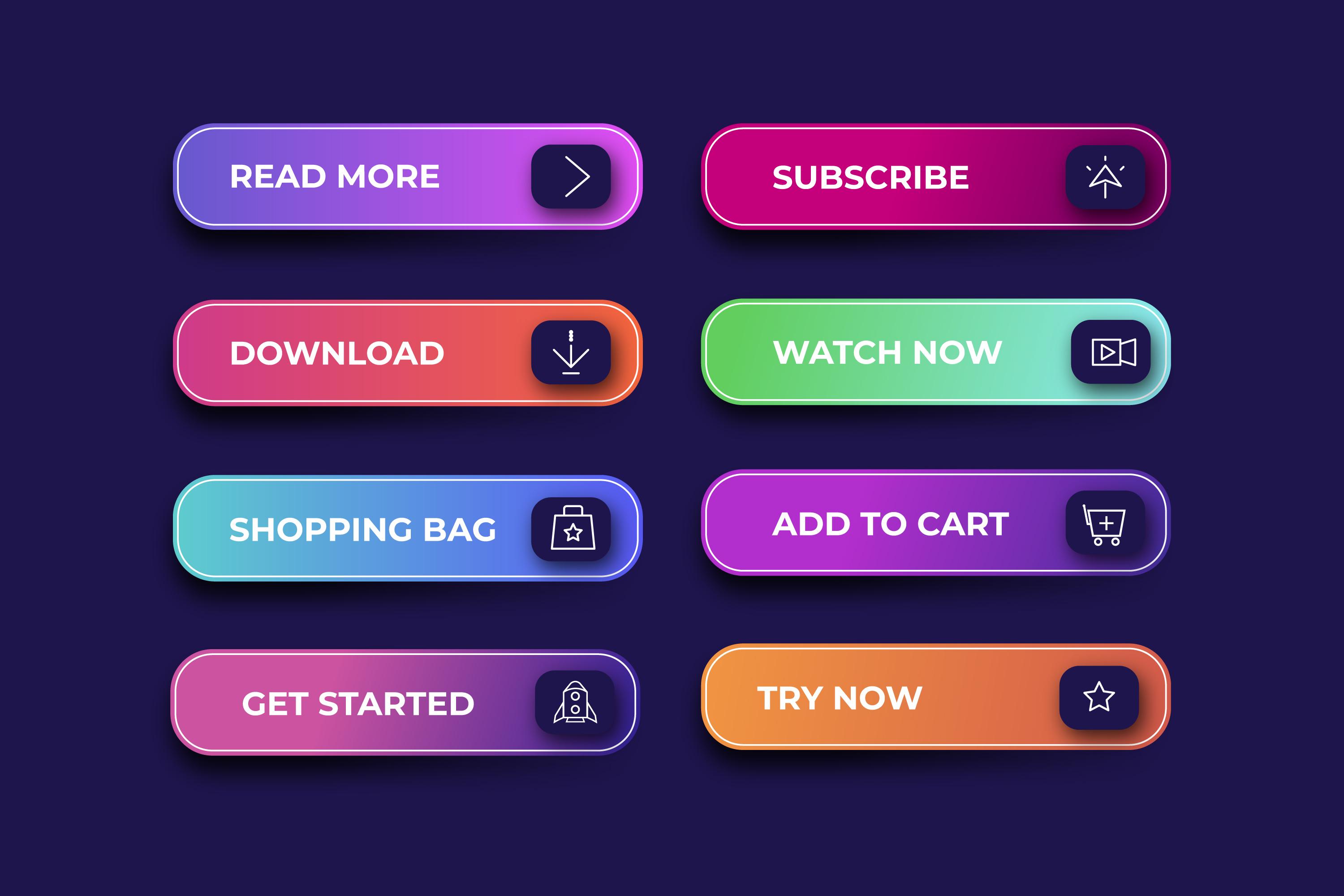
Why Buttons Are Essential for Your Website
Buttons aren’t just decoration they’re small digital signposts. A well-placed button tells users what to do next, such as:
- Book an appointment
- Visit your online store
- Read your services
- Contact you instantly
Without clear buttons, a website can feel confusing or incomplete. And when users feel lost, they leave. But ME-Page makes it easy to create simple, clean, and effective navigation elements that make your site more intuitive.
How to Add Buttons on ME-Page
Adding a button to your ME-Page website is quick and beginner-friendly. Here’s how to do it:
1. Open the Editor
Log in to your ME-Page dashboard and open the page you want to edit.
2. Choose Where to Place the Button
Scroll to the section where you want a new button. You can add buttons anywhere
- in a banner
- inside a section
- below text
- in your services block
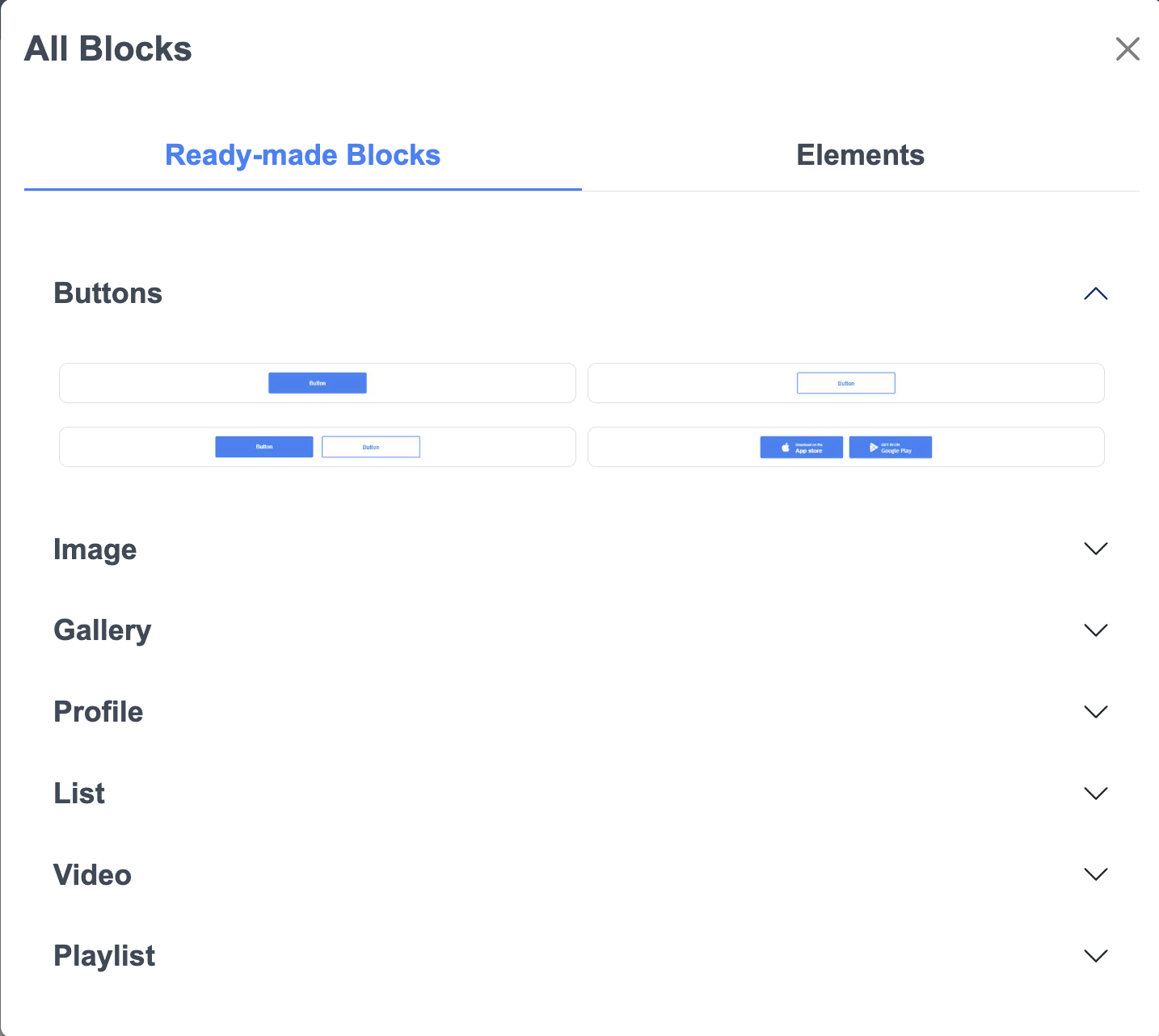
3. Add a New Button Block
Click “Add Block”, then choose the Button Block.
ME-Page offers Ready-Made blocks that include buttons, or you can insert a standalone button.
4. Insert Your Link
Add any link you want: your booking page, a form, a calendar, your store, or another website.
ME-Page doesn’t limit you. You can paste any URL you need.
That’s it your button is live!
How to Edit Buttons on ME-Page
The real magic happens when you customize your button so it matches your brand and message. ME-Page gives you full control in a simple, straightforward way.
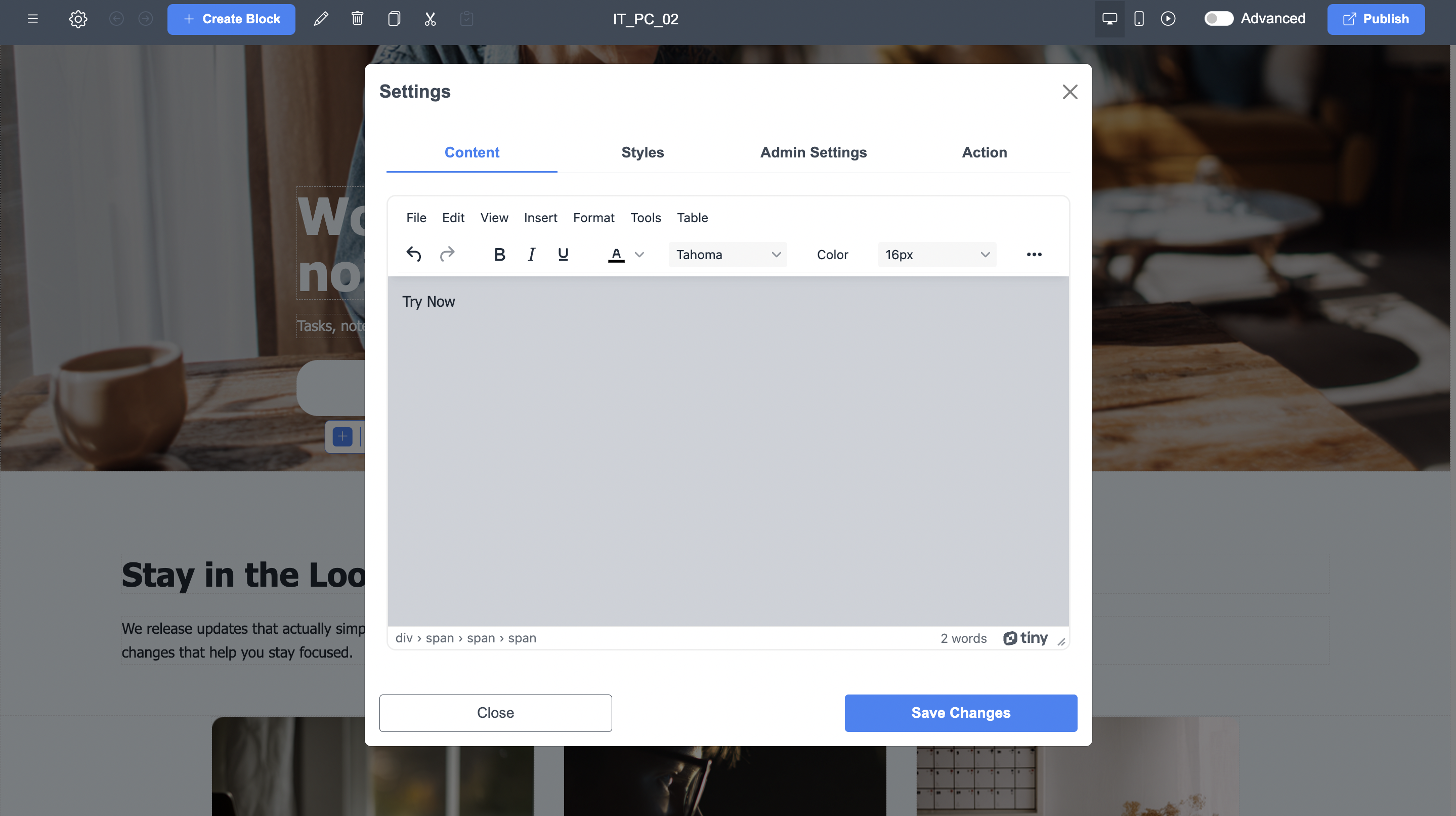
Edit Button Text
Write a clear and strong message, like:
- “Book Now”
- “Contact Me”
- “View Pricing”
- “Learn More”
- “Download Menu”
Short, action-focused text works best.
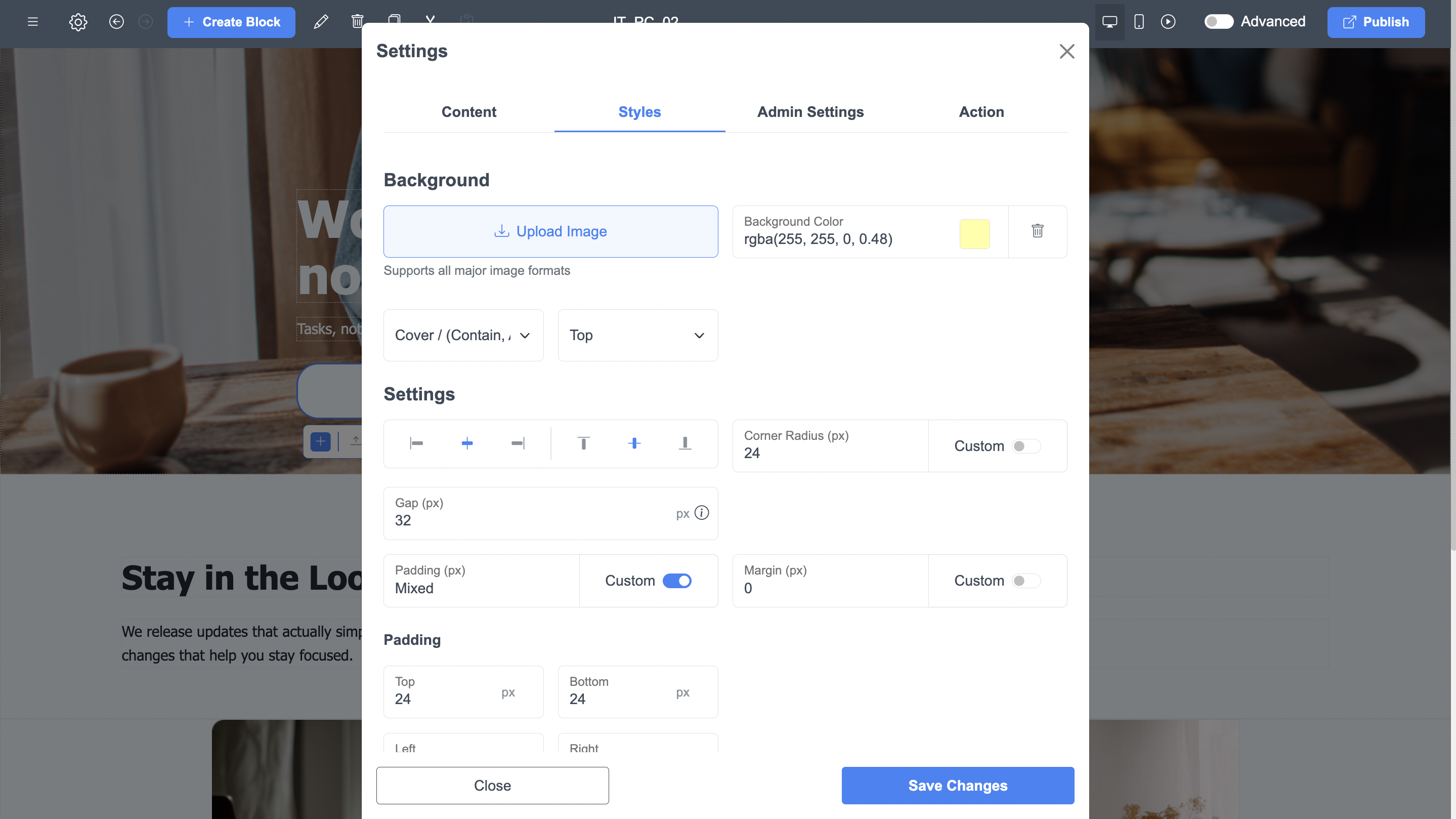
Customize Color and Size
Inside the settings panel, you can adjust:
- Button color
- Text color
- Button size
- Alignment
- Padding
- Icons (optional)
These small edits can make your button stand out and improve navigation instantly.
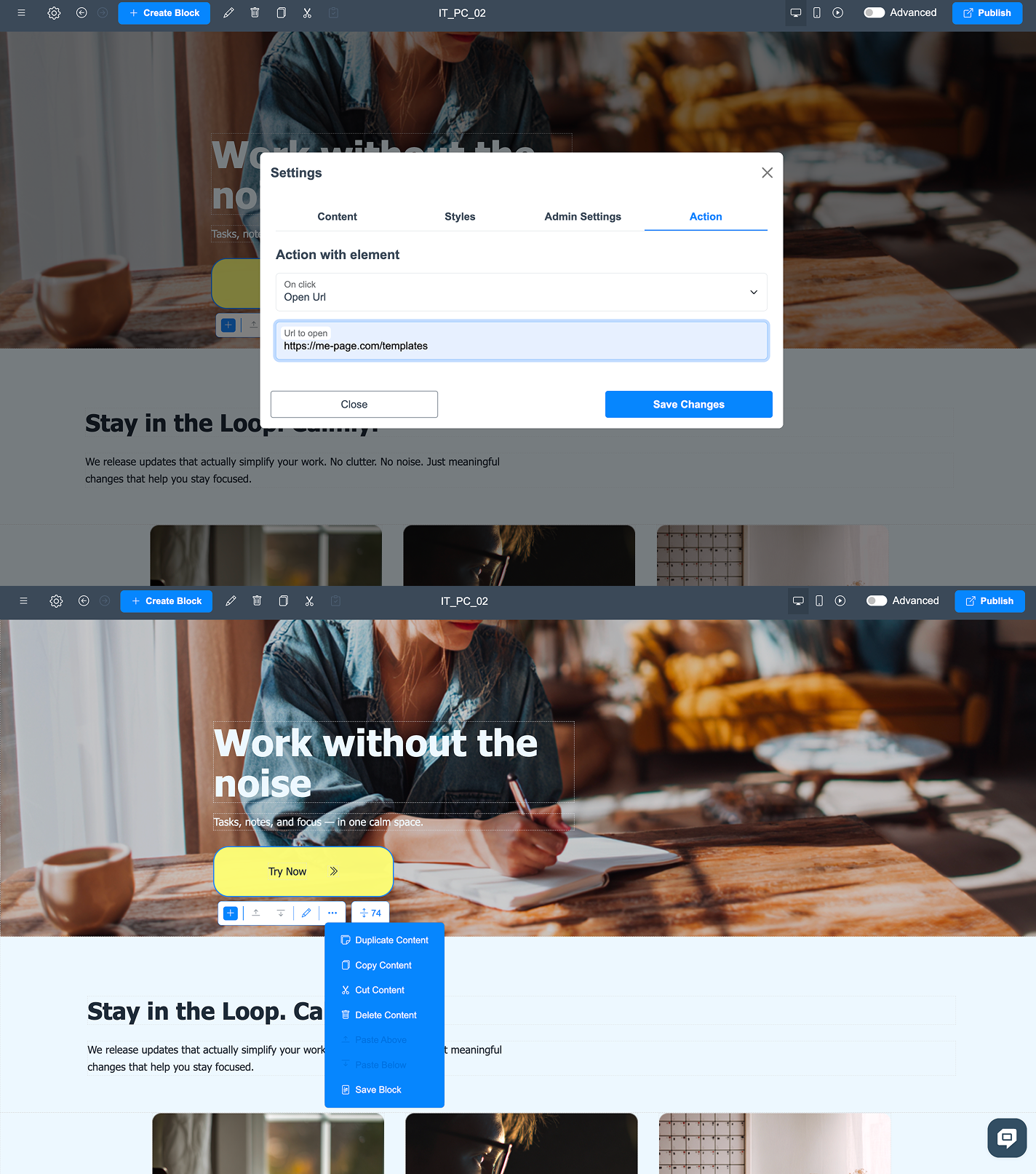
Update the Link Anytime
Just click the button in the editor, paste a new link, and save it.
Perfect for updating offers, seasonal promos, or scheduling links.
Duplicate Buttons for Consistency
ME-Page lets you duplicate a button with one click.
This ensures consistent design across your website.
Button Design Best Practices
Tips for Better Button Design on ME-Page
Want to make your buttons look even more professional? Follow these beginner-friendly tips:
1. Use Clear Calls to Action
Your button text should finish this sentence:
“I want users to…”
If you want them to contact you, the button should say “Contact Me,” not something vague.
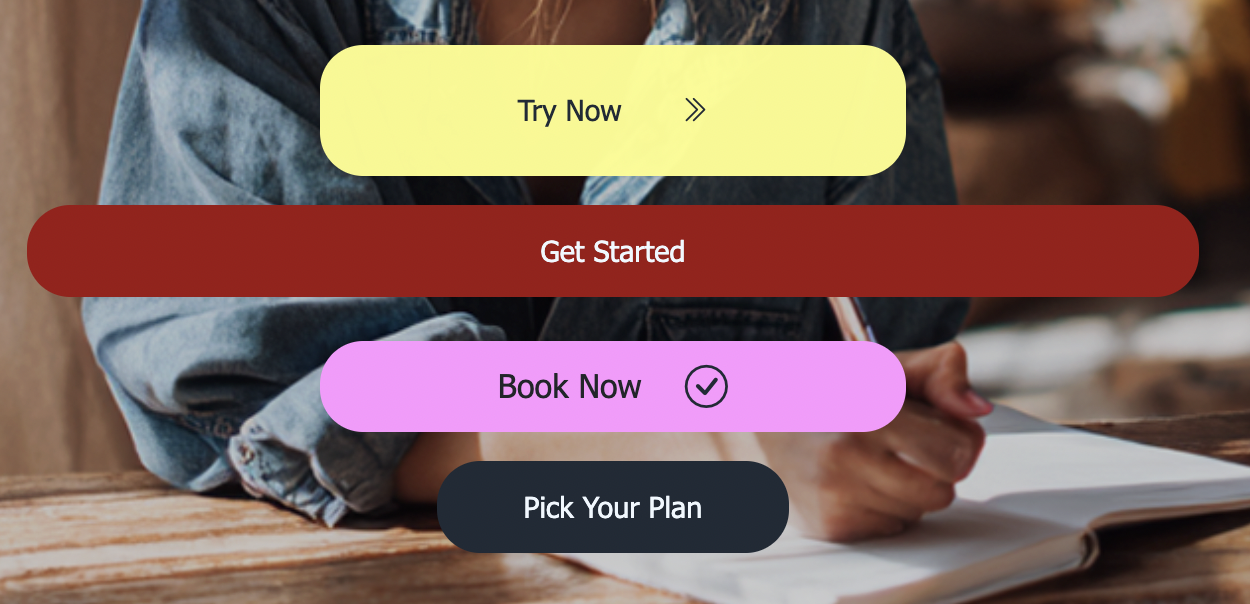
2. Use High-Contrast Colors
Buttons must stand out against your background.
For example:
- Dark background → bright button
- Light background → dark button
This makes them instantly visible.
3. Keep Button Text Short
Long messages look messy.
2–4 words is ideal.
4. Place Important Buttons High on the Page
People often skim.
Use buttons to guide their attention right away.
5. Use Multiple Buttons for Long Pages
For long ME-Page layouts (like portfolios or restaurant menus), repeat your most important button at least twice.
Conclusion
Buttons are one of the simplest yet most powerful elements you can add to your ME-Page website. They guide your visitors, help them discover important content, and make your entire site feel more organized and professional. Whether you're building a personal portfolio, a business page, or a landing page for your services, well-designed buttons can significantly improve how users interact with your content.
By making your buttons clear, attractive, and easy to click, you create a smoother experience that keeps visitors engaged and encourages them to take action. And the best part? ME-Page allows you to add, edit, and style buttons in just a few clicks—no design skills needed. So go ahead and enhance your navigation today. A few thoughtful buttons can transform your website into a more intuitive, user-friendly, and effective digital space.
Frequently Asked Questions about Adding and Editing Buttons for Better Navigation
Was This Article Helpful?
Click on a star to rate it!
Average Rating: 4.7/5
Voutes: 3
Share with Friends:



Previous
How Personal Trainers Can Showcase Services and Pricing with ME-Page
Next
How to Change Backgrounds and Template Blocks in ME-Page
Recent Articles
Everything You Need to Know About Using ME-Page Constructor for Your Website.
Using Multi-Page Navigation to Improve User Experience
As your website grows, visitors need an easy way to move between pages without getting lost. Whether you're bu...

How Internal Links Improve SEO on Multi-Page Websites
When people think about SEO, they often focus on keywords, backlinks, or content creation. While those factors...
How to Choose the Best Homepage Layout for Your Goals
Your homepage is often the first impression visitors have of your brand. Within just a few seconds, people dec...
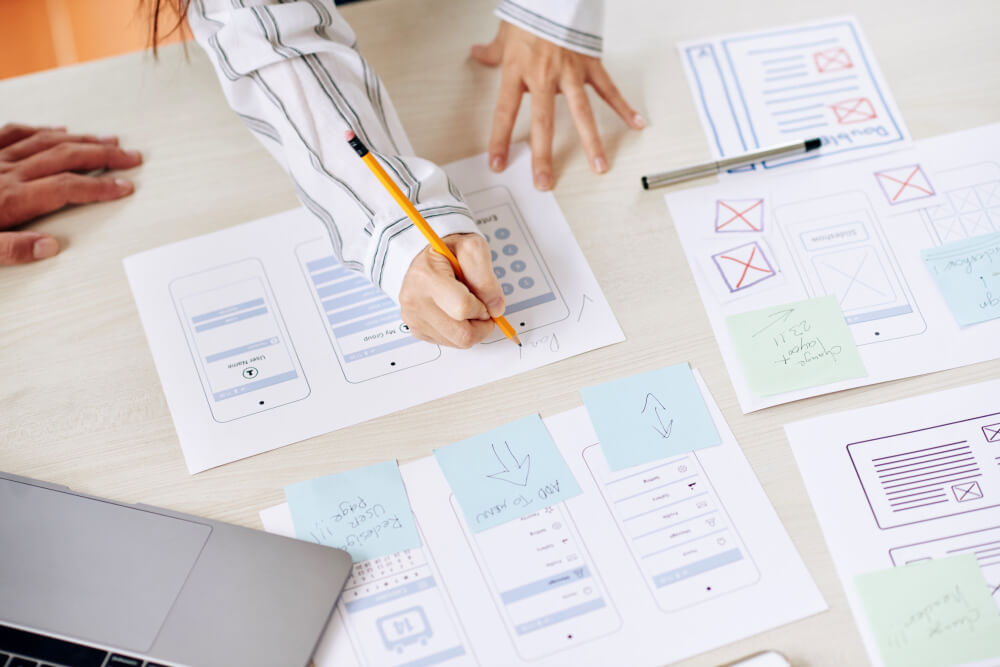
How to Plan Your Website Before You Start Building
Building a website can feel exciting. You may already be thinking about colors, images, fonts, and clever head...
Using Subpages to Build Service, Pricing, and About Pages
As your website grows, placing all your information on a single page becomes less effective. Visitors want to ...

Why Every Artist Needs a Website Beyond Social Media
For artists, musicians, photographers, illustrators, and other creatives, social media has become an important...
Using Multi-Page Navigation to Improve User Experience
As your website grows, visitors need an easy way to move between pages without getting lost. Whether you're bu...
How Internal Links Improve SEO on Multi-Page Websites
When people think about SEO, they often focus on keywords, backlinks, or content creation. While those factors...
How to Choose the Best Homepage Layout for Your Goals
Your homepage is often the first impression visitors have of your brand. Within just a few seconds, people dec...
How to Plan Your Website Before You Start Building
Building a website can feel exciting. You may already be thinking about colors, images, fonts, and clever head...
Using Subpages to Build Service, Pricing, and About Pages
As your website grows, placing all your information on a single page becomes less effective. Visitors want to ...
Why Every Artist Needs a Website Beyond Social Media
For artists, musicians, photographers, illustrators, and other creatives, social media has become an important...