Me-Page Team
Last modified 1 Dec 2025
Creating a clean, modern, and visually engaging website doesn’t need complex tools — thanks to ME-Page, you can customize everything right inside a simple and intuitive editor. And two of the most powerful customization options you have are Background Editing and Template Blocks. With just a few clicks, you can completely transform the look and feel of any page section.
Let’s walk through how to change backgrounds, update templates, and design a ME-Page that truly reflects your style.

Why Customizing Your ME-Page Matters
Think of your ME-Page as your digital living room. When someone lands on it, the background, layout, and structure create the first impression — before they even read a word.
Customizing these elements helps you:
- Build a unique and memorable brand
- Improve readability and visual flow
- Make your page more user-friendly
- Keep visitors engaged longer
And ME-Page gives you all the tools you need without overwhelming you. The interface is clean, and every setting is just a click away.
How to Change Backgrounds on ME-Page
Uploading Background Images
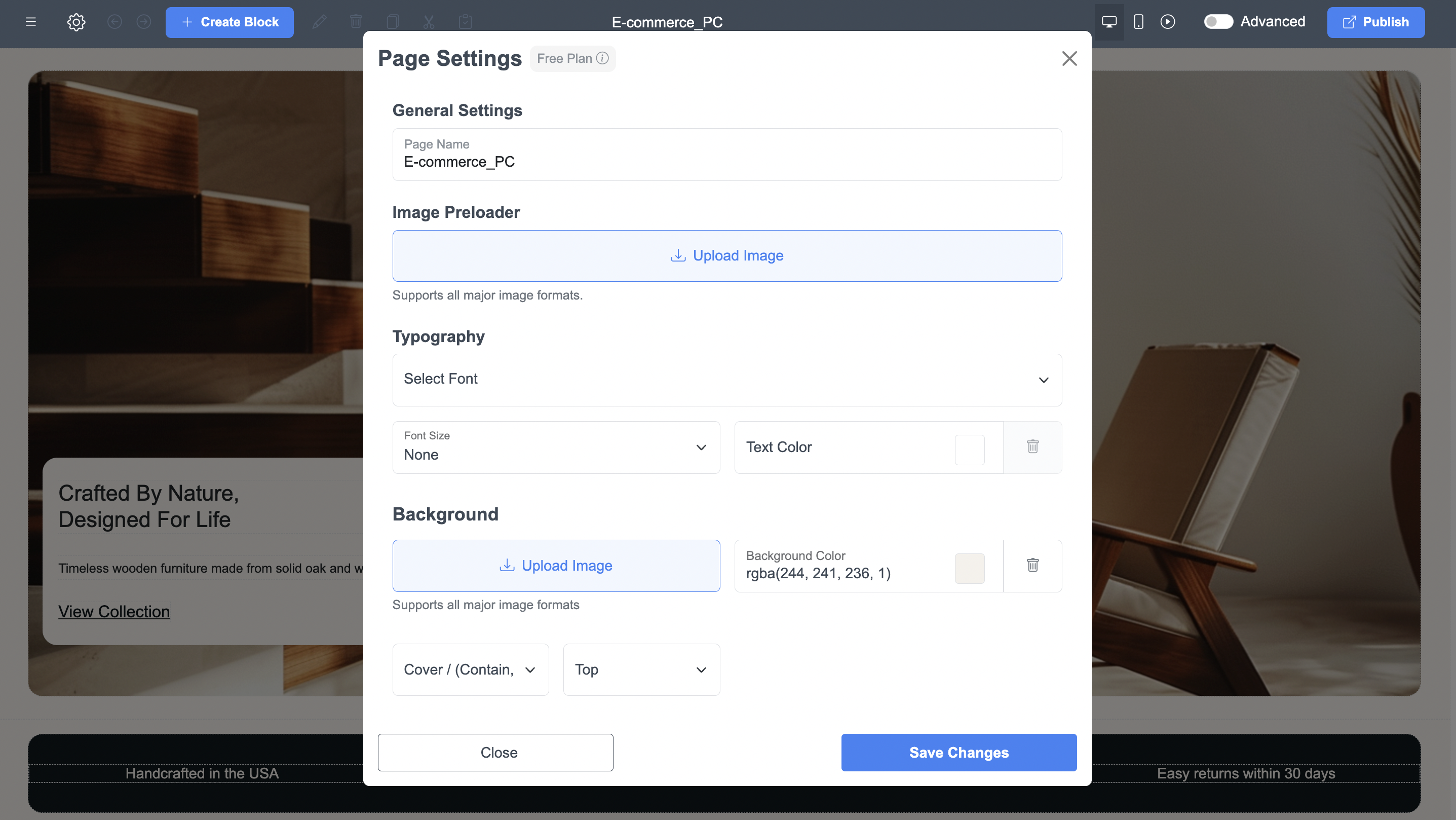
Inside Page Settings, you’ll find the Background section. When you click Upload Image, you can add any supported image file as your background.
ME-Page supports:
- PNG
- JPG
- JPEG
- WebP
After uploading, the background instantly updates, giving your page a new visual identity.
Adjusting Background Color & Position
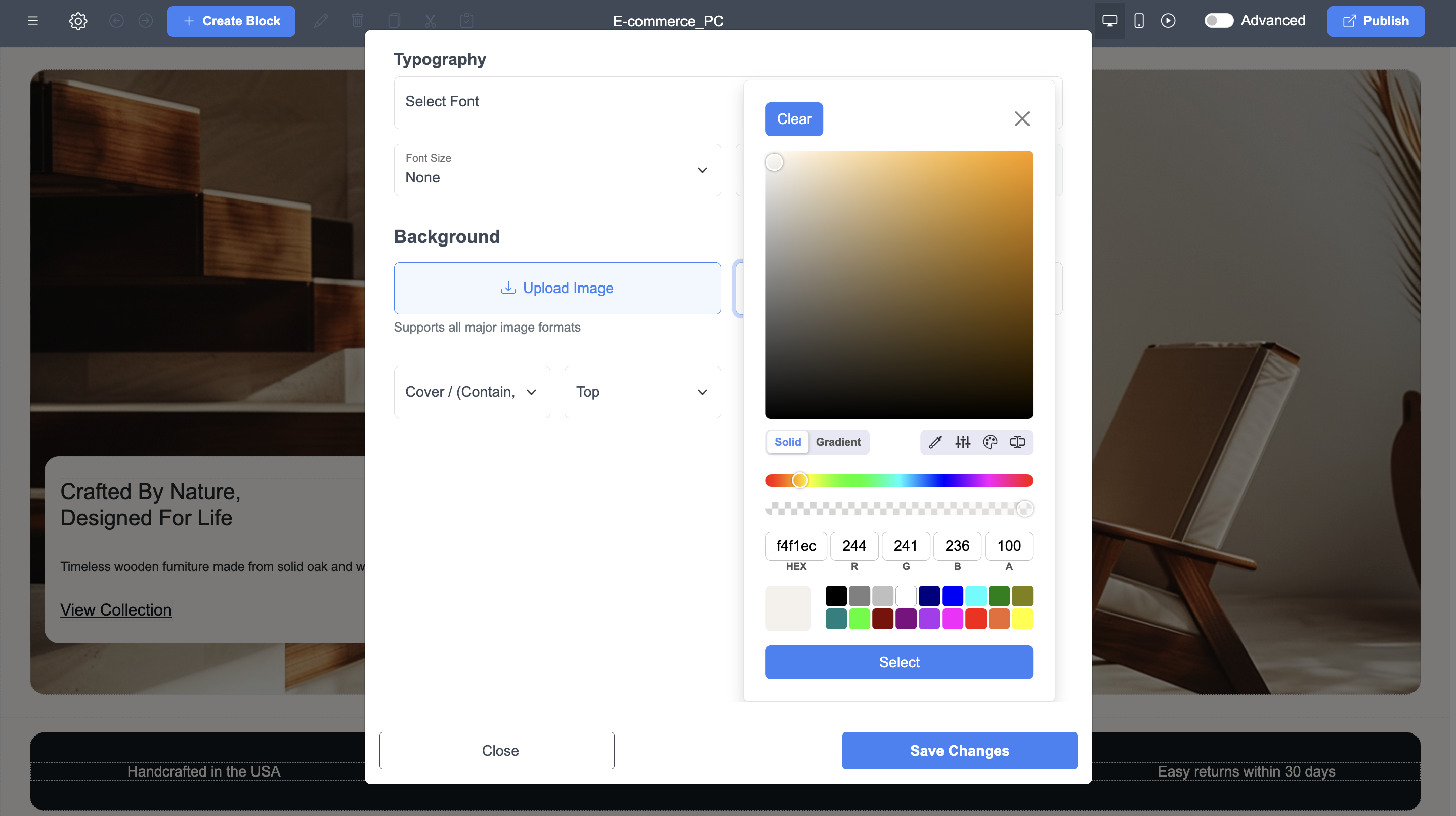
You can also customize the background using:
- Background Color Picker
- Cover / Contain settings
- Top / Center / Bottom positioning
These options appear exactly like in your screenshots.
Cover makes the image stretch to fill the whole section.
Contain ensures the entire image is visible without cropping.
If you want a minimal, clean design, simply skip uploading an image and choose a solid color that fits your brand palette.
How to Edit and Use Template Blocks
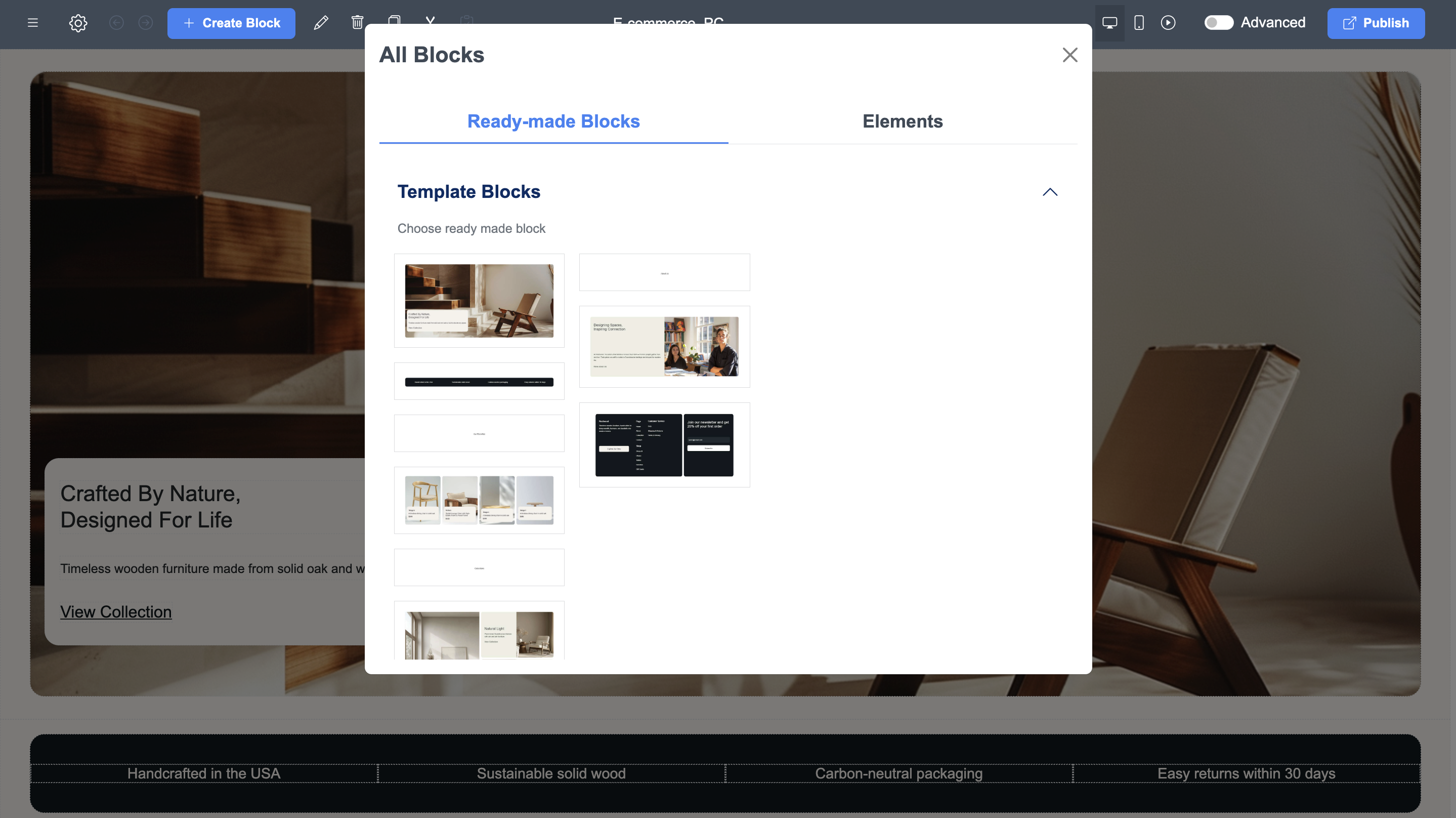
Blocks are the foundation of your ME-Page layout. In your second screenshot, the All Blocks panel shows categories like “Ready-made Blocks” and various templates.
These help you quickly build professional-looking layouts without needing a designer.
Choosing Ready-Made Blocks
To add a block:
- Click + Create Block at the top of the editor.
- Open the Ready-made Blocks tab.
- Choose from template styles such as:
- Hero sections
- Image galleries
- Service highlight blocks
- Call-to-action blocks
- Multi-column layouts
These blocks already include typography spacing, image placement, and structure — you only need to replace the content.
Customizing Blocks for Your Layout
Once the block is added:
- Click anywhere inside the block to edit text
- Replace images using the upload button
- Modify spacing, margins, and alignment
- Add or delete elements inside the block
ME-Page is extremely flexible, so even template blocks can be reshaped to match your layout vision.
Background Options Breakdown
Conclusion
Customizing backgrounds and template blocks in ME-Page gives you full creative control over how your website looks and feels. By choosing the right images, colors, and layout blocks, you can instantly transform your page into a more engaging, professional, and visually consistent space that reflects your brand or personal style. The interface shown in the screenshots makes these changes simple: you can modify typography, upload background images, adjust color settings, and insert ready-made blocks all within just a few clicks.
These customization tools aren’t just cosmetic; they help improve user experience, guide visitors through your content more effectively, and make your page stand out among competitors. With thoughtful design choices and intentional use of ME-Page’s built-in features, you can build a website that feels polished, trustworthy, and tailored to your goals. Whether you're updating a single section or redesigning your entire page, ME-Page gives you the flexibility to grow, enhance, and refine your online presence over time.
Frequently Asked Questions about Backgrounds and Template Blocks
Was This Article Helpful?
Click on a star to rate it!
Average Rating: 5/5
Voutes: 2
Share with Friends:


Previous
How to Add and Edit Buttons for Better Navigation on ME-Page

Next
Getting Started with ME-Page Ready-Made Blocks: A Step-by-Step Walkthrough
Recent Articles
Everything You Need to Know About Using ME-Page Constructor for Your Website.
Using Multi-Page Navigation to Improve User Experience
As your website grows, visitors need an easy way to move between pages without getting lost. Whether you're bu...

How Internal Links Improve SEO on Multi-Page Websites
When people think about SEO, they often focus on keywords, backlinks, or content creation. While those factors...
How to Choose the Best Homepage Layout for Your Goals
Your homepage is often the first impression visitors have of your brand. Within just a few seconds, people dec...

How to Plan Your Website Before You Start Building
Building a website can feel exciting. You may already be thinking about colors, images, fonts, and clever head...
Using Subpages to Build Service, Pricing, and About Pages
As your website grows, placing all your information on a single page becomes less effective. Visitors want to ...

Why Every Artist Needs a Website Beyond Social Media
For artists, musicians, photographers, illustrators, and other creatives, social media has become an important...
Using Multi-Page Navigation to Improve User Experience
As your website grows, visitors need an easy way to move between pages without getting lost. Whether you're bu...
How Internal Links Improve SEO on Multi-Page Websites
When people think about SEO, they often focus on keywords, backlinks, or content creation. While those factors...
How to Choose the Best Homepage Layout for Your Goals
Your homepage is often the first impression visitors have of your brand. Within just a few seconds, people dec...
How to Plan Your Website Before You Start Building
Building a website can feel exciting. You may already be thinking about colors, images, fonts, and clever head...
Using Subpages to Build Service, Pricing, and About Pages
As your website grows, placing all your information on a single page becomes less effective. Visitors want to ...
Why Every Artist Needs a Website Beyond Social Media
For artists, musicians, photographers, illustrators, and other creatives, social media has become an important...