
Website Builder Tips & Guides
Practical articles on building websites, landing pages, and growing your online presence.

How to Link Pages Together for Better Website Navigation
A multi-page website gives you more room to organize information, but adding pages is only half the job. Visit...

Build a Personal Website That Stands Out in 2026
Your social media profiles can show what you do, but they do not give you complete control over your online pr...

Managing Multiple Websites from One ME-Page Account
Running more than one website used to be complicated. Different logins, scattered tools, and endless switching...
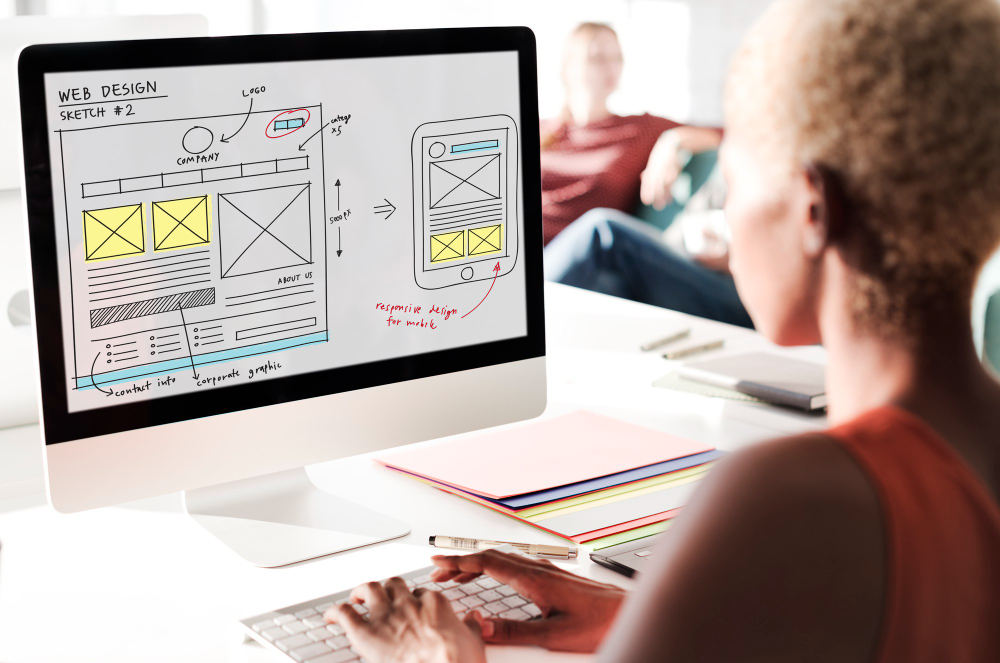
How to Organize Content Across Multiple Website Pages
A multi-page website gives you room to explain your business, services, products, and ideas without putting ev...

Essential Pages Every Business Website Should Include
A business website doesn't need dozens of pages to look professional. What it does need is a clear structure t...

How to Write Website Headlines That Attract More Visitors
A headline is often the first piece of text people notice when they open a website. Before they read your para...
Most Popular Articles


Recent Articles
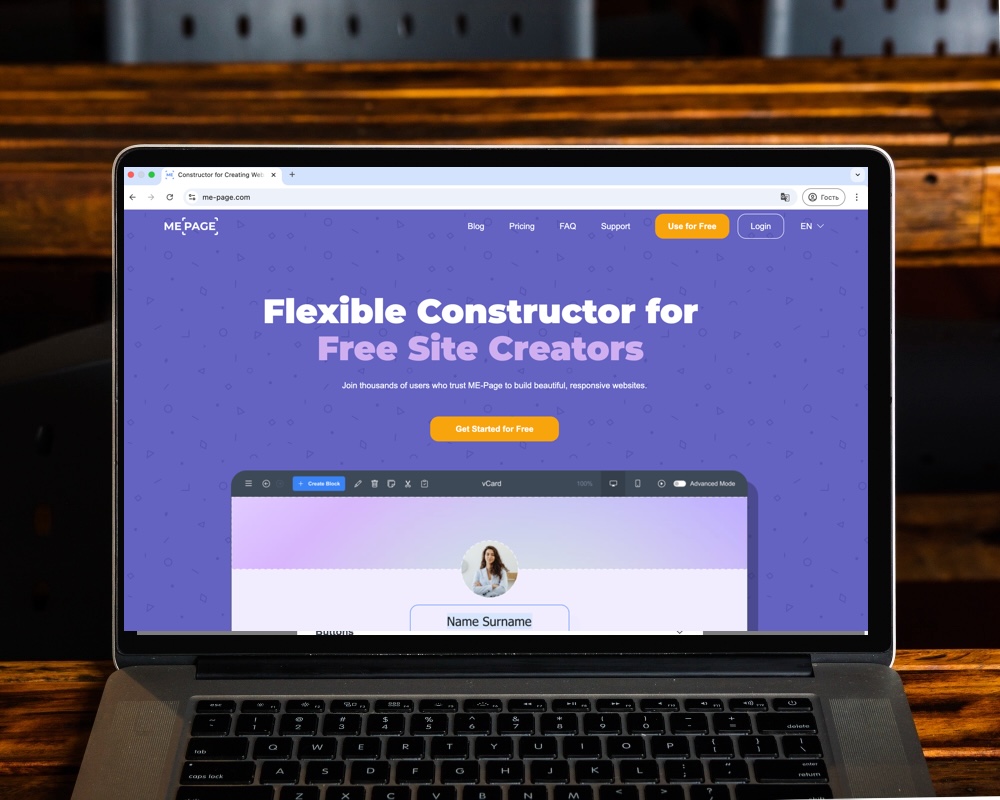
Everything You Need to Know About Using ME-Page Constructor for Your Website.
How to Link Pages Together for Better Website Navigation
A multi-page website gives you more room to organize information, but adding pages is only half the job. Visit...
Build a Personal Website That Stands Out in 2026
Your social media profiles can show what you do, but they do not give you complete control over your online pr...
Managing Multiple Websites from One ME-Page Account
Running more than one website used to be complicated. Different logins, scattered tools, and endless switching...
How to Organize Content Across Multiple Website Pages
A multi-page website gives you room to explain your business, services, products, and ideas without putting ev...
Essential Pages Every Business Website Should Include
A business website doesn't need dozens of pages to look professional. What it does need is a clear structure t...
How to Write Website Headlines That Attract More Visitors
A headline is often the first piece of text people notice when they open a website. Before they read your para...
How to Link Pages Together for Better Website Navigation
A multi-page website gives you more room to organize information, but adding pages is only half the job. Visit...
Build a Personal Website That Stands Out in 2026
Your social media profiles can show what you do, but they do not give you complete control over your online pr...
Managing Multiple Websites from One ME-Page Account
Running more than one website used to be complicated. Different logins, scattered tools, and endless switching...
How to Organize Content Across Multiple Website Pages
A multi-page website gives you room to explain your business, services, products, and ideas without putting ev...
Essential Pages Every Business Website Should Include
A business website doesn't need dozens of pages to look professional. What it does need is a clear structure t...
How to Write Website Headlines That Attract More Visitors
A headline is often the first piece of text people notice when they open a website. Before they read your para...